Organise your digital life – Part 1 Photos

I got my first digital camera in 1998. It was a low-end Kodak model but it was still quite expensive, around US$200, and it took photos at a whopping 493×373 resolution. I think it held about 20 photos in it’s internal memory. It didn’t even have a flash!

Back then I didn’t have much of a strategy for organising my digital photos – and the photos were so crap I didn’t use it all that often anyway:

My student workspace in 1998, taken on my 1998 era Kodak digital camera. Spray-painted keyboard and spray-painted big-ass server case, oh yeah. Looks like the 14″ monitor is running Winamp.

My next digital camera was in 2003 – a Pentax Optio S, the original “Altoids tin” camera. This camera served me well and I still have it lying around somewhere. Alas the flimsy battery compartment lid broke off but other than that it still works.

Pentax Optio S

Anyway, about 2004 I realised I needed a strategy for organising all of my photos, and the strategy I chose and which have stuck to is this.

Under My Pictures I have a Camera folder. In the Camera folder is a folder for each year:

Each year is divided up into sub-folders named after the locations where I have taken photos.

The naming format of each subfolder is “## – Place name”. E.g. in 2010 the first place I took photos was at my friend Kelvin’s wedding in New Plymouth so that is the first folder listed.

It’s really quite straightforward (and I think worthwhile) to organise your photos into folders based on year and location.

Finally, at the photos level is where I get a bit more pedantic (and it’s probably not necessary).

I usually rename my folders “Event – ##” or if the photo contains people then “Event – ## – Person Name”. I use a tool for renaming the photos in this way (an old version of ACDSee that came bundled with my Pentax camera in 2003) but I still need to manually add my friend’s names to the filename.

And that’s it. I know that most people aren’t going to bother to rename each photo the way I do (fair enough), but I think it’s not much effort to organise your photos into folders by year and location. And for god’s sake, delete your crap photos. I am notoriously economical with photos, i.e. I might take 10 or 20 shots of a landmark but I’ll only keep 1 or 2 of them.

Improve ASP.NET page performance using Database Engine Tuning Advisor

I was recently working on a legacy ASP.NET application which was taking like 30 seconds to load a simple page with a Gridview.

The culprit was Linq to SQL lazy-loading combined with an inefficient architecture. By tidying that up I was able to get the page load time down to about one a second.

I could have stopped there but I thought it would be nice to see if the SQL performance could be improved further.

Step 1. Profile

Start SQL Server Profiler and create a new trace. Choose the "Tuning" profile.

If your database server has more than one active database on it, you will want to choose to filter activity to your database only.

Once the trace starts recording, go to your website and hit the page you are trying to improve. In my case it was a page listing Help Requests, so I hit that page and did a couple of searches. Stop recording the trace and save it. I called mine “help requests.trc”.

Step 2. Analyse

Start SQL Server’s Database Engine Tuning Advisor. It will automatically start a new Tuning session when you connect to your database.

Choose your trace file that you’ve just recorded (1), choose your database (2), tick your database again (3), and finally hit Start Analysis (4).

Results:

Oops, that’s not quite right. It’s reporting errors, "SHOWPLAN permission denied in database ‘DBTest’"

At first this didn’t make sense, because I’m a dbo so I have permission to do everything. But remember – we’re running a trace we recorded earlier. IIS’s application pool for the website is setup to use a specific account – COMPANYDOMAIN\IIS_APPUSER, and this account doesn’t have SHOWPLAN permission. So grant it:

GRANT SHOWPLAN TO [COMPANYDOMAIN\IIS_APPUSER]

Now run the trace again, and you should see the recommendations screen.

Step 3. Tune

As you can hopefully see, SQL Server recommends creating 4 indexes and a bunch of statistics, and estimates a whopping 92% speed improvement! Press the Save recommendations button in the toolbar to save those recommendations to a SQL script which you can review and tweak, and then run that script against your database.

Done!

Inserting with OData

My boss asked me to add the ability to insert new jobs using the jobs oData service I wrote about a few posts ago.

First, add the ability to write data:

public static void InitializeService(DataServiceConfiguration config)
{
    config.SetEntitySetPageSize("*", 50); // limit to 50 rows
    config.SetEntitySetAccessRule("Jobs", EntitySetRights.AllRead | EntitySetRights.WriteAppend | EntitySetRights.ReadSingle); 
    ...

Again, the only problem with this is that anyone on the internet can access this and write data.
So we need to add a ChangeInterceptor to make sure the user is authenticated:

[ChangeInterceptor("Jobs")]
public void OnChangeEntries(Job job, UpdateOperations operations)
{
    if (!HttpContext.Current.Request.IsAuthenticated)
    {
        throw new DataServiceException("You must be authenticated to create a new Job.");
    }
}

And that’s it, all done.

Log exceptions with Health Monitoring in ASP.NET MVC3

Out of the box, ASP.NET MVC3 applications have basic error handling. To see, let’s create an action that will deliberately throw an error.
HomeController.cs:

public ActionResult NoView() // this Action has no view, for testing error handling!
{
    return View();
}

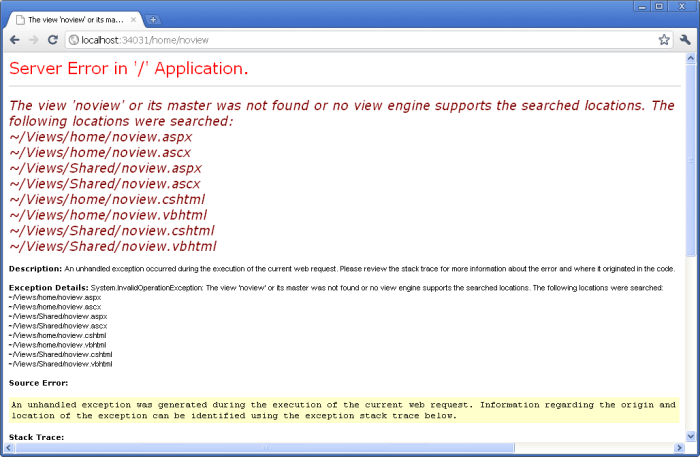
Now when we hit /Home/NoView (in our development environment), we get the YSOD because MVC raises an InvalidOperationException, as expected.
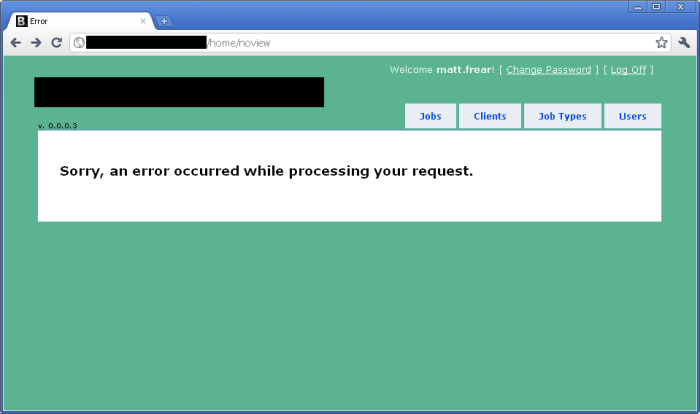
In our production environment the error is automatically handled nicely and the /Shared/Error view is shown:
I’m not quite sure how MVC is handling the error in production under the covers, since I am NOT specifying the [HandleError] attribute anywhere. Hmm, wait a second, what’s this?
Global.asax.cs:

public class MvcApplication : System.Web.HttpApplication
{
    public static void RegisterGlobalFilters(GlobalFilterCollection filters)
    {
        filters.Add(new HandleErrorAttribute());
    }

Cool, I just learnt something. The [HandleError] attribute is registered globally when we created a new project. That’s going to make the rest of this blog post easier…

Logging Exceptions

In our development environment, when these exceptions are thrown they appear in the eventlog. But in production, they don’t get put into the eventlog. We need to log them somewhere!
There’s a bucketload of ways to log in ASP.NET – log4net, ELMAH, etc. But I decided I wanted to use one that comes built into ASP.NET – health monitoring.

Heath monitoring

Following the helpful chaps at 4guysfromRolla, we can enable .NET health monitoring by editing our web.config:

<configuration>
    <system.web>
      <healthMonitoring enabled="true">
       <eventMappings>
          <clear />
          <add name="All Errors" type="System.Web.Management.WebBaseErrorEvent"
                   startEventCode="0" endEventCode="2147483647" />
       </eventMappings>

       <providers>
          <clear />
          <add name="EventLogProvider" type="System.Web.Management.EventLogWebEventProvider" />
       </providers>

       <rules>
          <clear />
          <add name="All Errors Default" eventName="All Errors" provider="EventLogProvider"
                   profile="Default" minInstances="1" maxLimit="Infinite" minInterval="00:00:00" />
       </rules>
      </healthMonitoring>
    </system.web>
</configuration>

But that’s not enough. For some reason, the ASP.NET MVC [HandleError] attribute (registered globally in Global.ascx.cs, remember) doesn’t invoke the health monitoring features. But thanks to a helpful post by Andrew Wilinski, we can create our own HandleError attribute which will. Create a new class called HandleErrorHm.cs:

/// <seealso cref="http://weblogs.asp.net/awilinsk/archive/2008/12/11/handleerrorattribute-and-health-monitoring.aspx"/>
public class HandleErrorHmAttribute : HandleErrorAttribute
{
    public override void OnException(ExceptionContext context)
    {
        base.OnException(context);
        new WebRequestErrorEventMvc("An unhandled exception has occurred.", this, 103005, context.Exception).Raise();
    }
}

public class WebRequestErrorEventMvc : WebRequestErrorEvent 
{
    public WebRequestErrorEventMvc(string message, object eventSource, int eventCode, Exception exception) : base(message, eventSource, eventCode, exception) {}
    public WebRequestErrorEventMvc(string message, object eventSource, int eventCode, int eventDetailCode, Exception exception) : base(message, eventSource, eventCode, eventDetailCode, exception) {}
}

And now change our Global.asax.cs to use our attribute instead:

public class MvcApplication : System.Web.HttpApplication
{
    public static void RegisterGlobalFilters(GlobalFilterCollection filters)
    {
        filters.Add(new HandleErrorHmAttribute());
    }

Big success!! Our exceptions appear in the eventlog on our production web server.

Logging to a SQL database

Since I’m already using ASP.NET authentication I already have an aspnet_WebEvent_Events table. So if I follow the rest of the 4GuysfromRolla post, I can set it up to log to my existing application database:

<connectionStrings>
    <add name="ApplicationServices" connectionString="Data Source=.\sqlexpress;Initial Catalog=Jobs;Integrated Security=True" providerName="System.Data.SqlClient" />
  </connectionStrings>
...
  <system.web>
    <healthMonitoring enabled="true">
      <eventMappings>
        <clear />
        <!-- Log ALL error events -->
        <add name="All Errors" type="System.Web.Management.WebBaseErrorEvent" startEventCode="0" endEventCode="2147483647" />
        <!-- Log application startup/shutdown events -->
        <add name="Application Events" type="System.Web.Management.WebApplicationLifetimeEvent" startEventCode="0" endEventCode="2147483647"/>
      </eventMappings>
      <providers>
        <clear />
        <!-- Provide any customized SqlWebEventProvider information here (such as a different connection string name value -->
        <add connectionStringName="ApplicationServices" maxEventDetailsLength="1073741823" buffer="false" name="SqlWebEventProvider" type="System.Web.Management.SqlWebEventProvider" />
      </providers>
      <rules>
        <clear />
        <add name="All Errors Default" eventName="All Errors" provider="SqlWebEventProvider" profile="Default" minInstances="1" maxLimit="Infinite" minInterval="00:00:00" />
        <add name="Application Events Default" eventName="Application Events" provider="SqlWebEventProvider" profile="Default" minInstances="1" maxLimit="Infinite" minInterval="00:00:00" />
      </rules>
    </healthMonitoring>

And now my errors are logged to my SQL database (although they’re not very readable).

What about 404 errors?

We don’t really want 404 errors to be handled in the same way – we should show the user a “page not found” error page instead of the generic “an error occured” page.
Web.Release.config:

  <system.web>
    <compilation xdt:Transform="RemoveAttributes(debug)" />
    <customErrors mode="On" xdt:Transform="Replace">
      <error statusCode="404" redirect="/Home/NotFound"/>
    </customErrors>
  </system.web>

HomeController.cs:

public ActionResult NotFound() // web.config sends 404s here
{
    return View();
}

Then in Views/Shared, add a new view called NotFound.cshtml:

@{
    ViewBag.Title = "404 Not Found";
}

<h2>@ViewBag.Title</h2>

Sorry, but we couldn't find that page.

Note that in our dev environment it will still show the YSOD for 404s, but in production our users will get redirected correctly.
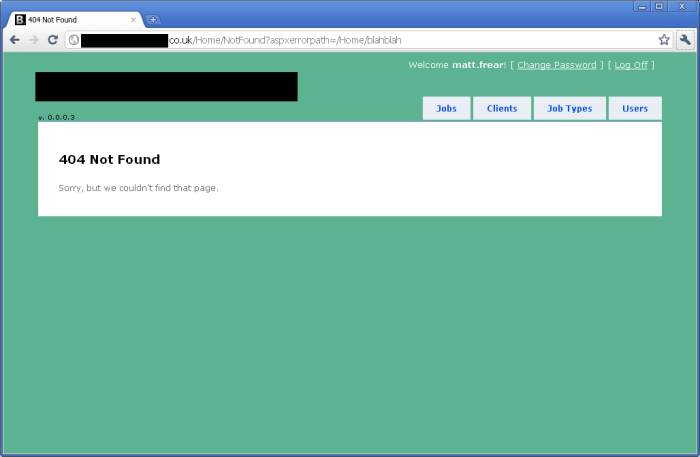
One final note: if you follow these steps, 404s are NOT logged by health monitoring.

Playing with OData

OData is the bomb.

I just spent a few days creating a quick ASP.NET MVC3 website for a client. Nothing fancy, and thanks to MVC’s scaffolding the job was done quickly enough. Then the client asked me to create a web service so that another one of their systems could access it in the future.

Hi Matt,
Need you to write a simple API that allows us to query the job bag DB with an Job Number and return back the Client Ref (if available). Ideally – if you can extend out the API to return all data for a record we can use this for other things in the future also.

Come talk if you need more than this back of fag packet spec :)

Well, with 6 lines of code it was done. Right-click Web project, Add New Item, WCF Data Service.

public class JobService : DataService<JobSystemEntities>
{
    // This method is called only once to initialize service-wide policies.
    public static void InitializeService(DataServiceConfiguration config)
    {
        config.SetEntitySetPageSize("*", 50); // limit to 50 rows

        config.SetEntitySetAccessRule("Jobs", EntitySetRights.AllRead); // allow querying of all jobs e.g. http://localhost:34031/JobService.svc/Jobs            
        // config.SetEntitySetAccessRule("Jobs", EntitySetRights.ReadSingle); // need to specify a job e.g. http://localhost:34031/JobService.svc/Jobs(1001)

        config.SetEntitySetAccessRule("Clients", EntitySetRights.AllRead);
        config.SetEntitySetAccessRule("Departments", EntitySetRights.AllRead);
        config.SetEntitySetAccessRule("JobTypes", EntitySetRights.AllRead);

        config.DataServiceBehavior.MaxProtocolVersion = DataServiceProtocolVersion.V2;
    }

I used Jeff and Tim’s PDC10 screencast (which I linked to a few posts ago) as a reference on how to do this. (They add the OData service 45 mins in).

Too easy. Using that we can do all sorts of awesome queries, like:

jQuery UI not working with ASP.NET MVC3 partial views

I was playing with ASP.NET MVC3 (RC2) and I couldn’t get jQuery UI’s datepicker to work for me in a partial view. It would always say datepicker is not a function.

It took me a while to figure out the problem is.

Firstly I was referencing jQueryUI’s css and jQuery UI in my layout page


_Layout.cshtml:

<head>
 <title>@ViewBag.Title</title>
 <link href="@Url.Content("~/Content/Site.css")" rel="stylesheet" type="text/css" />
 <link href="@Url.Content("~/Content/themes/base/jquery-ui.css")" rel="stylesheet" type="text/css" />
 <script src="@Url.Content("~/Scripts/jquery-1.4.4.min.js")" type="text/javascript"></script>
 <script src="@Url.Content("~/Scripts/jquery-ui.min.js")" type="text/javascript"></script></head>

Then, at the bottom of my partial view I was calling datepicker like so:

Job.cshtml:
<div>
    @Html.LabelFor(model => model.DueDate)
</div>
<div>
    @Html.EditorFor(model => model.DueDate)
    @Html.ValidationMessageFor(model => model.DueDate)
</div>
<script language="javascript" type="text/javascript">
    $(document).ready(function () {
        $("#DueDate").datepicker();
    });
</script>

The problem was I didn’t notice that the MVC scaffolding had added a reference to jQuery to the top of my partial view. This reference to jQuery was wiping out the earlier reference to jQuery UI in layout page.

Job.cshtml:
@model JobSystem.Web.Models.Job

<script src="@Url.Content("~/Scripts/jquery-1.4.4.min.js")" type="text/javascript"></script>
<script src="@Url.Content("~/Scripts/jquery.validate.min.js")" type="text/javascript"></script>
<script src="@Url.Content("~/Scripts/jquery.validate.unobtrusive.min.js")" type="text/javascript"></script>

The solution was to remove the reference to jquery in my partial view (Job.cshtml).

I also decided to remove the reference to jQuery UI from the layout page (_Layout.cshtml) and add it to the partial view (Job.cshtml).

Doing a daily summary with SQL

One of the account managers at work asked me if I could give her a summary of how many support requests are opened and closed each day.

Update 23 Jan 2011

Thanks to nedoboi for pointing out a bug with my code in the comments, and posting a fix!

Here’s a simplified version of our HelpRequest table.

CREATE TABLE [dbo].[HelpRequest](
	[Id] [int] IDENTITY(1,1) NOT NULL,
	[CreatedTimestamp] [datetime] NOT NULL,
	[ClosedTimestamp] [datetime] NULL
) ON [PRIMARY]

Each HelpRequest has a CreatedTimestamp and a ClosedTimestamp which are both datetimes. One way to get the Date part of a datetime is like so:

SELECT CAST( FLOOR( CAST( CreatedTimestamp AS float) ) AS smalldatetime) AS OpenedDate

Let’s put that in a function.

CREATE FUNCTION truncateDate ( @date datetime )
RETURNS datetime
AS
BEGIN 
    RETURN CAST( FLOOR( CAST( @date AS float) ) AS smalldatetime)
END

Now let’s do a GROUP BY to get all the HelpRequests opened on a given date range:

SELECT dbo.truncateDate(CreatedTimestamp) AS Report_Date,
COUNT(1) AS Qty_Opened
FROM HelpRequest
WHERE CreatedTimestamp BETWEEN '2010-01-01' AND '2011-01-13'
GROUP BY dbo.truncateDate(CreatedTimestamp)

We can do the same thing, but for closed help requests. No need to show that code.

Finally, do a join union to get the Open and the Closed for each day.

SELECT Report_Date, SUM(QTY_OPENED) AS Opened, SUM(QTY_CLOSED) AS Closed
FROM
(
	SELECT
	dbo.truncateDate(CreatedTimestamp) AS Report_Date,
	COUNT(1) AS Qty_Opened,
	0 AS QTY_CLOSED
	FROM HelpRequest
	WHERE CreatedTimestamp BETWEEN '2010-01-01' AND '2011-01-13'
	GROUP BY dbo.truncateDate(CreatedTimestamp)
UNION
	SELECT
	dbo.truncateDate(ClosedTimestamp) AS Report_Date,
	0 AS QTY_OPENED,
	COUNT(1) AS QTY_CLOSED
	FROM HelpRequest
	WHERE ClosedTimestamp BETWEEN '2010-01-01' AND '2011-01-13'
	GROUP BY dbo.truncateDate(CLOSEDTIMESTAMP)
) DATES
GROUP BY Report_Date
ORDER BY Report_Date

Mega-ugly, but it works. Too bad I don’t have a DBA to help me tidy it up! Feel free to write a comment with any suggestions.
Thanks again to nedoboi for the bug fix.

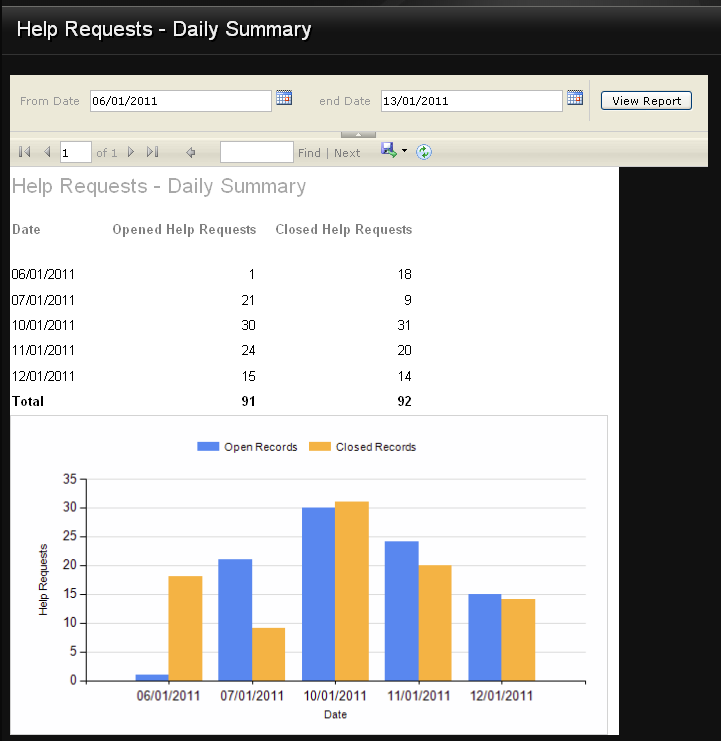
OK, final task is to parameterize the above query and then add it to SQL Server Reporting Services. A little bit of playing and, voila;

Download binary files in IE6 with ASP.NET MVC 2.0

On an ASP.NET MVC 2.0 application I was supporting, the application had a download link for downloading a PDF. When clicked, the browser would popup the usual question – what do you want to do with the file? Open, Save or Cancel?

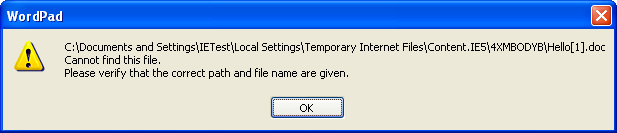
If they click Save it would always work fine with all browsers, but if they click Open it would work fine in all browsers except IE6. With IE6, when they click Open, the file gets downloaded to IE6’s temporary files folder, and then (for PDFs) Acrobat Reader would try to open it. However, it would fail with the error message: “There was an error opening this document. This file cannot be found.” The same problem would also happen with Word documents.

This was only happening in IE6, all other browsers were fine.

Currently, the  Download method on the Controller would write an audit entry and then send the file to the browser using MVC’s File() method, like so:

public ActionResult Download(int id)
{
    Document doc = _documentRepository.GetById(id);

    if (doc != null)
    {
        return File(doc.Filepath, doc.FileType1.Mimetype, Path.GetFilename(doc.Filepath));
    }
    return RedirectToAction("Index");
}

After a lot of Fiddler investigation, playing around with the headers (content-type and content-disposition), and playing with the browser settings I still couldn’t get it to work. I finally found the solution via a stack overflow post. Here’s my version:

public class BinaryFileResult : ActionResult
{
    public string Filename { get; set; }
    public string Path { get; set; }
    public string ContentType { get; set; }

    public override void ExecuteResult(ControllerContext context)
    {
        FileStream sourceFile = new FileStream(context.HttpContext.Server.MapPath(Path), FileMode.Open);
        int length = (int)sourceFile.Length; // NB. this will only allow download of the first 2Gb of the file.
        byte[] buffer = new byte[length];
        sourceFile.Read(buffer, 0, length);
        sourceFile.Close();

        context.HttpContext.Response.ClearContent();
        context.HttpContext.Response.ClearHeaders();
        context.HttpContext.Response.Buffer = true;
        context.HttpContext.Response.ContentType = ContentType;
        context.HttpContext.Response.AddHeader("Content-Length", length.ToString());
        context.HttpContext.Response.AddHeader("Content-Disposition", "attachment; filename=\"" + Filename + "\"");
        context.HttpContext.Response.BinaryWrite(buffer);
        context.HttpContext.Response.Flush();
        context.HttpContext.Response.End();
    }
}

And it is called via:


public ActionResult Download(int id)
{
    Document doc = _documentRepository.GetById(id);

    if (doc != null)
    {
        BinaryFileResult res = new BinaryFileResult
        {
            Path.GetFileName(doc.filepath).Trim(),
            Path = doc.filepath,
            ContentType = doc.FileType1.mimetype.Trim()
        };

        return res;
    }
    return RedirectToAction("Index");
}

And that worked fine in IE6 and all later browsers (Fx 3.6, Chrome 8, IE8).

Change your country with iTunes iStore and iPhone App Store

A few months ago I moved from NZ to London. For a while I kept using my NZ account on iTunes and on my iPhone to buy apps, but eventually I needed to start using the UK app store.

The only info I could find on google was how to change your country in iTunes. That’s easy enough, using the country selector at the bottom of the screen. So now I can browse the UK iTunes store, and everything appears in £. But when I’d try and sign in to buy something, I’d get an error message “Your account is only valid for purchases in the NZ iStore” and I’d get redirected to the NZ iStore. I couldn’t find much help online, and was about to sign up for a whole new UK-based iTunes account with another email address, until I found this help page:

Changing your iTunes Store country:

Sign in to the account for the iTunes Store region you’d like to use. If already signed in to an account, from Settings, choose Store and then View Account.

Tap “Change Country of Region” and follow the on screen process of changing your region. Agree to the terms and conditions for the region if necessary, and then change your billing information.

Once that was done, I could see and use the UK iTunes on my Mac. But when I would surf the App Store on my iPhone I was still seeing the NZ app store. The fix is to just download any free app. Once it starts downloading it, it realises you’ve signed up to use a new country’s App Store and redirects you there. Or, on the iPhone go into Settings -> iTunes & App Stores -> Apple ID, and then Sign Out. When you Sign in again you’ll be redirected to the new country’s App Store.

A final tip: if you decide you don’t want to change your country and you need to buy US iTunes vouchers from overseas, TunesBud can hook you up.

Lost intellisense squiggles after Resharper 5.1 uninstall

I had another play with Resharper at work recently. There’s lots I like about it, for example the code suggestions, and the way it grays out unused functions and unused branches in methods. It’s really good for tidying up legacy code. And “Go To Implementation” is a massive time saver.

There’s a few things I don’t like about it. I don’t think it’s Refactoring options are much better than those built into Visual Studio – I only ever use Extract Method anyway. And I don’t like its “Find All References”.

Anyway, when the trial ran out and I uninstalled it, I found I’d lost my Intellisense squiggles (under Syntax errors and the like).

To turn them back on, it’s under Tools –> Options –> C# –> Advanced. Check “Underline errors in the editor” and “Show live semantic errors”.

resharper