jsTree tri-state checkboxes with ASP.NET MVC revisited

My original jsTree checkboxes post is still my most popluar, yet it is 18 months old and no longer works with the latest version of jsTree (pre 1.0). Since that post is so popular I thought I should update it.

My first surprise was how much the jsTree guys changed their API between releases – I was only going from version 0.9.9 to version 1.0, but  I had to practically start from scratch.

So, without further ado:

jsTree is a jQuery plugin for creating a treeviews, and jsTree’s checkbox plugin allows you to create a treeview with tri-state checkboxes, like so:

Notice how “Origination” appears half-checked because only some of its children are checked.

Getting started

For this demo I am using ASP.NET MVC 3 and jsTree pre 1.0 fixed. Let’s start with a new “ASP.NET MVC 3 Web Application”, choose Internet Application, name it jsTreeDemo, and add the required jsTree files to our solution:

In the View, create a div which you want to become a treeview. I’ll name mine demoTree. Also add references to the jsTree script, and add a new index.js file for our custom javascript.

Views/Home/Index.cshtml

@{
 ViewBag.Title = "Home Page";
}

<h2>@ViewBag.Message</h2>

<div id="demoTree">

</div>

treeModel = [{"data":"Confirm Application","attr":{"id":"10"},"children":null},{"data":"Things","attr":{"id":"20"},"children":[{"data":"Thing 1","attr":{"id":"21"},"children":null},{"data":"Thing 2","attr":{"id":"22"},"children":null},{"data":"Thing 3","attr":{"id":"23"},"children":null},{"data":"Thing 4","attr":{"id":"24"},"children":[{"data":"Thing 4.1","attr":{"id":"241"},"children":null},{"data":"Thing 4.2","attr":{"id":"242"},"children":null},{"data":"Thing 4.3","attr":{"id":"243"},"children":null}]}]},{"data":"Colors","attr":{"id":"40"},"children":[{"data":"Red","attr":{"id":"41"},"children":null},{"data":"Green","attr":{"id":"42"},"children":null},{"data":"Blue","attr":{"id":"43"},"children":null},{"data":"Yellow","attr":{"id":"44"},"children":null}]}];


Scripts/index.js

/// 

$(function () {
   $("#demoTree").jstree({
      json_data : {
         data : treeModel
      },
      plugins : ["themes", "json_data", "ui", "checkbox"]
 });
});

Briefly, jstree has a number of ways of poplulating the tree with data – in my previous jsTree post I was populating the tree via AJAX but for now the tree is populated via hardcoded JSON (using the built-in "json_data" plugin). Don’t forget to specify the "checkbox" plugin too.

Populate the tree from a viewmodel

Just like last time, let’s create a viewmodel for creating the tree structure.

Models/JsTreeModel.cs

namespace jsTreeDemo.Models
{
  public class JsTreeModel
  {
    public string data;
    public JsTreeAttribute attr;
    public JsTreeModel[] children;
  }
  
  public class JsTreeAttribute
  {
    public string id;
    public bool selected;
  }
}

Now let’s change our controller to create a viewmodel, serialize it to JSON, and pass that string to our View.
Controllers/HomeController.cs

public ActionResult Index()
{
    ViewBag.Message = "Welcome!";
            
    var model = GetTreeData();
            
    string jsonModel = new JavaScriptSerializer().Serialize(model);
            
    return View("Index", "_Layout", jsonModel);
}

private JsTreeModel[] GetTreeData()
{
var tree = new JsTreeModel[] 
{
    new JsTreeModel { data = "Confirm Application", attr = new JsTreeAttribute { id = "10", selected = true } },
    new JsTreeModel 
    { 
        data = "Things",
        attr = new JsTreeAttribute { id = "20" },
        children = new JsTreeModel[]
            {
                new JsTreeModel { data = "Thing 1", attr = new JsTreeAttribute { id = "21", selected = true } },
                new JsTreeModel { data = "Thing 2", attr = new JsTreeAttribute { id = "22" } },
                new JsTreeModel { data = "Thing 3", attr = new JsTreeAttribute { id = "23" } },
                new JsTreeModel 
                { 
                    data = "Thing 4", 
                    attr = new JsTreeAttribute { id = "24" },
                    children = new JsTreeModel[] 
                    { 
                        new JsTreeModel { data = "Thing 4.1", attr = new JsTreeAttribute { id = "241" } }, 
                        new JsTreeModel { data = "Thing 4.2", attr = new JsTreeAttribute { id = "242" } }, 
                        new JsTreeModel { data = "Thing 4.3", attr = new JsTreeAttribute { id = "243" } }
                    },
                },
            }
    },
    new JsTreeModel 
    {
        data = "Colors",
        attr = new JsTreeAttribute { id = "40" },
        children = new JsTreeModel[]
            {
                new JsTreeModel { data = "Red", attr = new JsTreeAttribute { id = "41" } },
                new JsTreeModel { data = "Green", attr = new JsTreeAttribute { id = "42" } },
                new JsTreeModel { data = "Blue", attr = new JsTreeAttribute { id = "43" } },
                new JsTreeModel { data = "Yellow", attr = new JsTreeAttribute { id = "44" } },
            }
    }
};

return tree;
}

Views/Index.cshtml

@model string
       
@{
    ViewBag.Title = "Home Page";
}

...


    treeModel = @Html.Raw(Model);

Determining which items are checked when posting

Let’s put our tree inside a <form> and submit it.
Views/Index.cshtml

...
@using (Html.BeginForm("Results", "Home", FormMethod.Post))
{ 
    <div id="demoTree">
    </div>
    <br />
    <div>
        
    </div>
} 
...

And now let’s add the Results method to the HomeController

Controllers/HomeController.cs

[HttpPost]
public ActionResult Results(FormCollection form)
{
    return View(form);
}

and the View

Views/Home/Results.cshtml

@model FormCollection

@{
    ViewBag.Title = "Results";
}

<h2>Results</h2>
<p>
    You chose:
    @foreach (var item in Model.AllKeys)
    {
        @Model[item]@: 
    } 
</p>

<p>
    @Html.ActionLink("Home", "Index")
</p>

If you press the Submit button, nothing will happen as nothing is passed through in the FormCollection to Results() in HomeController. Despite appearances, jsTree doesn’t by default render any HTML <input>s for the checkboxes. But it’s easy enough to tell it to render them using the real_checkboxes flag:

Scripts/index.js

$(function () {
    $("#demoTree").jstree({
        json_data: {
            data: treeModel
        },
        checkbox: {
            real_checkboxes: true,
            real_checkboxes_names: function (n) {
                return [("check_" + (n[0].id || Math.ceil(Math.random() * 10000))), n[0].id]
            }
        },
        plugins: ["themes", "json_data", "ui", "checkbox"]
    });
});

Now when we submit our form, we should see the ids of the values which were checked:

What about telling the tree to pre-check some items?

So how do we render the tree with some items already checked? Notice how we added “public bool selected” to JsTreeAttribute? This doesn’t do anything as far as the checkboxes are concerned, but it does add a custom property called “selected” to each node’s <li>. We can use that to tell the jsTree to check the given node, by binding to the ‘loaded.jstree’ event.

Scripts/index.js

$(function () {
    $("#demoTree").jstree({
        json_data: {
            data: treeModel
        },
        checkbox: {
            real_checkboxes: true,
            real_checkboxes_names: function (n) {
                return [("check_" + (n[0].id || Math.ceil(Math.random() * 10000))), n[0].id]
            }
        },
        plugins: ["themes", "json_data", "ui", "checkbox"]
    }).bind("loaded.jstree", function (event, data) {
        $('#demoTree').jstree('check_node', 'li[selected=selected]');
    });
});

You’ll see that the nodes that are marked with selected=true in GetTreeData() are now pre-checked when you first load the page.

Here’s a link to the solution (VS 2010).
Visual Studio 2010 PerfWatson extension

Today I installed the Visual Studio PerfWatson extension. Briefly, it automatically reports when Visual Studio hangs (for > 2 seconds) to Microsoft so that they can one day fix it.

But a nicety is the PerfWatson Monitor extension, which adds a cool little graphic it adds to the bottom of Visual Studio:

Since I’m running Visual Studio on my lowely netbook which constantly hangs (i.e. doesn’t respond for a few seconds), Microsoft will be getting plenty of data from me!

The Perf Watson blog is here but if you want to install it just go to Tools -> Extension Manager (in VS) and search for Watson in the Online Gallery. Install Visual Studio PerfWatson and PerfWatson Monitor.

SortedDictionary of countries in the world

In case you need it – this might come in handy.

A dictionary of all countries in the world with their ISO 3166 two digit country code.

SortedDictionary countries = new SortedDictionary {

{“AF”, “Afghanistan”},
{“AX”, “Aland Islands”},
{“AL”, “Albania”},
{“DZ”, “Algeria”},
{“AS”, “American Samoa”},
{“AD”, “Andorra”},
{“AO”, “Angola”},
{“AI”, “Anguilla”},
{“AQ”, “Antarctica”},
{“AG”, “Antigua and Barbuda”},
{“AR”, “Argentina”},
{“AM”, “Armenia”},
{“AW”, “Aruba”},
{“AU”, “Australia”},
{“AT”, “Austria”},
{“AZ”, “Azerbaijan”},
{“BS”, “Bahamas”},
{“BH”, “Bahrain”},
{“BD”, “Bangladesh”},
{“BB”, “Barbados”},
{“BY”, “Belarus”},
{“BE”, “Belgium”},
{“BZ”, “Belize”},
{“BJ”, “Benin”},
{“BM”, “Bermuda”},
{“BT”, “Bhutan”},
{“BO”, “Bolivia “},
{“BQ”, “Bonaire”},
{“BA”, “Bosnia and Herzegovina”},
{“BW”, “Botswana”},
{“BV”, “Bouvet Island”},
{“BR”, “Brazil”},
{“IO”, “British indian Ocean Territory”},
{“BN”, “Brunei Darussalam”},
{“BG”, “Bulgaria”},
{“BF”, “Burkina Faso”},
{“BI”, “Burundi”},
{“KH”, “Cambodia”},
{“CM”, “Cameroon”},
{“CA”, “Canada”},
{“CV”, “Cape Verde”},
{“KY”, “Cayman Islands”},
{“CF”, “Central African Republic”},
{“TD”, “Chad”},
{“CL”, “Chile”},
{“CN”, “China”},
{“CX”, “Christmas Island”},
{“CC”, “Cocos (keeling) Islands”},
{“CO”, “Colombia”},
{“KM”, “Comoros”},
{“CG”, “Congo”},
{“CD”, “Congo, The Democratic Republic of the”},
{“CK”, “Cook Islands”},
{“CR”, “Costa Rica”},
{“CI”, “Cote d’Ivoire”},
{“HR”, “Croatia”},
{“CU”, “Cuba”},
{“CW”, “Curacao”},
{“CY”, “Cyprus”},
{“CZ”, “Czech Republic”},
{“DK”, “Denmark”},
{“DJ”, “Djibouti”},
{“DM”, “Dominica”},
{“DO”, “Dominican Republic”},
{“EC”, “Ecuador”},
{“EG”, “Egypt”},
{“SV”, “El salvador”},
{“GQ”, “Equatorial guinea”},
{“ER”, “Eritrea”},
{“EE”, “Estonia”},
{“ET”, “Ethiopia”},
{“FK”, “Falkland Islands (Malvinas)”},
{“FO”, “Faroe Islands”},
{“FJ”, “Fiji”},
{“FI”, “Finland”},
{“FR”, “France”},
{“GF”, “French Guiana”},
{“PF”, “French Polynesia”},
{“TF”, “French Southern Territories”},
{“GA”, “Gabon”},
{“GM”, “Gambia”},
{“GE”, “Georgia”},
{“DE”, “Germany”},
{“GH”, “Ghana”},
{“GI”, “Gibraltar”},
{“GR”, “Greece”},
{“GL”, “Greenland”},
{“GD”, “Grenada”},
{“GP”, “Guadeloupe”},
{“GU”, “Guam”},
{“GT”, “Guatemala”},
{“GG”, “Guernsey”},
{“GN”, “Guinea”},
{“GW”, “Guinea-Bissau”},
{“GY”, “Guyana”},
{“HT”, “Haiti”},
{“HM”, “Heard Island and Mcdonald Islands”},
{“HN”, “Honduras”},
{“HK”, “Hong Kong”},
{“HU”, “Hungary”},
{“IS”, “Iceland”},
{“IN”, “India”},
{“ID”, “Indonesia”},
{“IR”, “Iran,”},
{“IQ”, “Iraq”},
{“IE”, “Ireland”},
{“IM”, “Isle of Man”},
{“IL”, “Israel”},
{“IT”, “Italy”},
{“JM”, “Jamaica”},
{“JP”, “Japan”},
{“JE”, “Jersey”},
{“JO”, “Jordan”},
{“KZ”, “Kazakhstan”},
{“KE”, “Kenya”},
{“KI”, “Kiribati”},
{“KP”, “Korea, Democratic People’s Republic of”},
{“KR”, “Korea, Republic of”},
{“KW”, “Kuwait”},
{“KG”, “Kyrgyzstan”},
{“LA”, “Lao People’s Democratic Republic”},
{“LV”, “Latvia”},
{“LB”, “Lebanon”},
{“LS”, “Lesotho”},
{“LR”, “Liberia”},
{“LY”, “Libya”},
{“LI”, “Liechtenstein”},
{“LT”, “Lithuania”},
{“LU”, “Luxembourg”},
{“MO”, “Macao”},
{“MK”, “Macedonia,”},
{“MG”, “Madagascar”},
{“MW”, “Malawi”},
{“MY”, “Malaysia”},
{“MV”, “Maldives”},
{“ML”, “Mali”},
{“MT”, “Malta”},
{“MH”, “Marshall Islands”},
{“MQ”, “Martinique”},
{“MR”, “Mauritania”},
{“MU”, “Mauritius”},
{“YT”, “Mayotte”},
{“MX”, “Mexico”},
{“FM”, “Micronesia,”},
{“MD”, “Moldova, Republic of”},
{“MC”, “Monaco”},
{“MN”, “Mongolia”},
{“ME”, “Montenegro”},
{“MS”, “Montserrat”},
{“MA”, “Morocco”},
{“MZ”, “Mozambique”},
{“MM”, “Myanmar”},
{“NA”, “Namibia”},
{“NR”, “Nauru”},
{“NP”, “Nepal”},
{“NL”, “Netherlands”},
{“NC”, “New Caledonia”},
{“NZ”, “New Zealand”},
{“NI”, “Nicaragua”},
{“NE”, “Niger”},
{“NG”, “Nigeria”},
{“NU”, “Niue”},
{“NF”, “Norfolk Island”},
{“MP”, “Northern Mariana Islands”},
{“NO”, “Norway”},
{“OM”, “Oman”},
{“PK”, “Pakistan”},
{“PW”, “Palau”},
{“PS”, “Palestinian Territory, Occupied”},
{“PA”, “Panama”},
{“PG”, “Papua New Guinea”},
{“PY”, “Paraguay”},
{“PE”, “Peru”},
{“PH”, “Philippines”},
{“PN”, “Pitcairn”},
{“PL”, “Poland”},
{“PT”, “Portugal”},
{“PR”, “Puerto Rico”},
{“QA”, “Qatar”},
{“RE”, “Reunion”},
{“RO”, “Romania”},
{“RU”, “Russian Federation”},
{“RW”, “Rwanda”},
{“BL”, “Saint Barthelemy”},
{“SH”, “Saint Helena,”},
{“KN”, “Saint Kitts and Nevis”},
{“LC”, “Saint Lucia”},
{“MF”, “Saint Martin (French Part)”},
{“PM”, “Saint Pierre and Miquelon”},
{“VC”, “Saint Vincent and the Grenadines”},
{“WS”, “Samoa”},
{“SM”, “San Marino”},
{“ST”, “Sao Tome and Principe”},
{“SA”, “Saudi Arabia”},
{“SN”, “Senegal”},
{“RS”, “Serbia”},
{“SC”, “Seychelles”},
{“SL”, “Sierra Leone”},
{“SG”, “Singapore”},
{“SX”, “Sint Maarten (Dutch part)”},
{“SK”, “Slovakia”},
{“SI”, “Slovenia”},
{“SB”, “Solomon Islands”},
{“SO”, “Somalia”},
{“ZA”, “South africa”},
{“GS”, “South Georgia and the South Sandwich Islands”},
{“ES”, “Spain”},
{“LK”, “Sri Lanka”},
{“SD”, “Sudan”},
{“SR”, “Suriname”},
{“SJ”, “Svalbard and Jan Mayen”},
{“SZ”, “Swaziland”},
{“SE”, “Sweden”},
{“CH”, “Switzerland”},
{“SY”, “Syrian Arab Republic”},
{“TW”, “Taiwan, Province of China”},
{“TJ”, “Tajikistan”},
{“TZ”, “Tanzania,”},
{“TH”, “Thailand”},
{“TL”, “Timor-leste”},
{“TG”, “Togo”},
{“TK”, “Tokelau”},
{“TO”, “Tonga”},
{“TT”, “Trinidad and Tobago”},
{“TN”, “Tunisia”},
{“TR”, “Turkey”},
{“TM”, “Turkmenistan”},
{“TC”, “Turks and Caicos Islands”},
{“TV”, “Tuvalu”},
{“UG”, “Uganda”},
{“UA”, “Ukraine”},
{“AE”, “United Arab Emirates”},
{“GB”, “United Kingdom”},
{“US”, “United States”},
{“UM”, “United States Minor Outlying Islands”},
{“UY”, “Uruguay”},
{“UZ”, “Uzbekistan”},
{“VU”, “Vanuatu”},
{“VA”, “Vatican City State”},
{“VE”, “Venezuela,”},
{“VN”, “Vietnam”},
{“VG”, “Virgin Islands, British”},
{“VI”, “Virgin Islands, U.S.”},
{“WF”, “Wallis and Futuna”},
{“EH”, “Western Sahara”},
{“YE”, “Yemen”},
{“ZM”, “Zambia”},
{“ZW”, “Zimbabwe”}
};

Using EF code first with an mdf database in App_Data

I’ve been playing around some more with EF code first. Today’s task was to try to get it to work with a .mdf file located in the App_Data folder of the web project.

It wasn’t much fun.

I hijacked the existing aspnetdb.mdf and tried to get that to work with EF Code First. Short answer: don’t bother, for these reasons:

  1. I couldn’t get EF code first to create my Category table
  2. So then I’d created the table manually myself in SQL Server Express, but EF still wouldn’t recognise it – “Invalid object name dbo.Category”
  3. So then I decided to start with a new .mdf file and yay EF code first created my Category table
  4. run aspnet_regsql.exe on it to get the ASP.NET Membership tables in there – fail
  5. Visual Studio has a lock on the mdf file – delete it from VS’s Server Explorer, run aspnet_regsql, yay
  6. Open DB in SQL Server Management studio to see what my database looks like – fail, locks on file

I’m not sure how to debug EF code first, I mean if it doesn’t work (i.e. your table isn’t created) you have no idea why.

So I guess I got it working in the end, but all the problems with the files being locked made me realise it’s not worth the hassle so I started again with a normal database inside SQL Express.

  1. Add your connection string:
    <add name="SiteDB" 
         connectionString="data source=.\SQLEXPRESS;Initial Catalog=Site;Integrated Security=SSPI;"
         providerName="System.Data.SqlClient" />

I recommend explicitly setting a connection string otherwise your database will have a big silly namespaced name. You don’t need to create the database though, EF will do that much for you.

  1. Run your app and hit the Categories page so that EF will create the tables
  2. Run aspnet_regsql.exe on it to add the membership tables
  3. Change your membership connection string to point to the same DB – or tell the AspNetSqlMembership provider to use that connection string blah blah

Announcing MVC3 starter site

Inspired by Rob Conery’s MVC starter site, I’ve created an MVC3 starter site.

It basically takes Visual Studio’s File -> New Project -> ASP.NET MVC 3 Web Application and builds on that, adding all the things we need to get started – IOC (Unity), Unit of work pattern, Logging (NLog), Reporting, oh and some CSS from freecsstemplates.org.

It’s also my first open source project in a while…

You can download it from codeplex at http://mvc3starter.codeplex.com

mvc3 starter app screenshot

Inserting with OData

My boss asked me to add the ability to insert new jobs using the jobs oData service I wrote about a few posts ago.

First, add the ability to write data:

public static void InitializeService(DataServiceConfiguration config)
{
    config.SetEntitySetPageSize("*", 50); // limit to 50 rows
    config.SetEntitySetAccessRule("Jobs", EntitySetRights.AllRead | EntitySetRights.WriteAppend | EntitySetRights.ReadSingle); 
    ...

Again, the only problem with this is that anyone on the internet can access this and write data.
So we need to add a ChangeInterceptor to make sure the user is authenticated:

[ChangeInterceptor("Jobs")]
public void OnChangeEntries(Job job, UpdateOperations operations)
{
    if (!HttpContext.Current.Request.IsAuthenticated)
    {
        throw new DataServiceException("You must be authenticated to create a new Job.");
    }
}

And that’s it, all done.

Log exceptions with Health Monitoring in ASP.NET MVC3

Out of the box, ASP.NET MVC3 applications have basic error handling. To see, let’s create an action that will deliberately throw an error.
HomeController.cs:

public ActionResult NoView() // this Action has no view, for testing error handling!
{
    return View();
}

Now when we hit /Home/NoView (in our development environment), we get the YSOD because MVC raises an InvalidOperationException, as expected.

In our production environment the error is automatically handled nicely and the /Shared/Error view is shown:

I’m not quite sure how MVC is handling the error in production under the covers, since I am NOT specifying the [HandleError] attribute anywhere. Hmm, wait a second, what’s this?
Global.asax.cs:

public class MvcApplication : System.Web.HttpApplication
{
    public static void RegisterGlobalFilters(GlobalFilterCollection filters)
    {
        filters.Add(new HandleErrorAttribute());
    }

Cool, I just learnt something. The [HandleError] attribute is registered globally when we created a new project. That’s going to make the rest of this blog post easier…

Logging Exceptions

In our development environment, when these exceptions are thrown they appear in the eventlog. But in production, they don’t get put into the eventlog. We need to log them somewhere!
There’s a bucketload of ways to log in ASP.NET – log4net, ELMAH, etc. But I decided I wanted to use one that comes built into ASP.NET – health monitoring.

Heath monitoring

Following the helpful chaps at 4guysfromRolla, we can enable .NET health monitoring by editing our web.config:

<configuration>
    <system.web>
      <healthMonitoring enabled="true">
       <eventMappings>
          <clear />
          <add name="All Errors" type="System.Web.Management.WebBaseErrorEvent"
                   startEventCode="0" endEventCode="2147483647" />
       </eventMappings>

       <providers>
          <clear />
          <add name="EventLogProvider" type="System.Web.Management.EventLogWebEventProvider" />
       </providers>

       <rules>
          <clear />
          <add name="All Errors Default" eventName="All Errors" provider="EventLogProvider"
                   profile="Default" minInstances="1" maxLimit="Infinite" minInterval="00:00:00" />
       </rules>
      </healthMonitoring>
    </system.web>
</configuration>

But that’s not enough. For some reason, the ASP.NET MVC [HandleError] attribute (registered globally in Global.ascx.cs, remember) doesn’t invoke the health monitoring features. But thanks to a helpful post by Andrew Wilinski, we can create our own HandleError attribute which will. Create a new class called HandleErrorHm.cs:

/// <seealso cref="http://weblogs.asp.net/awilinsk/archive/2008/12/11/handleerrorattribute-and-health-monitoring.aspx"/>
public class HandleErrorHmAttribute : HandleErrorAttribute
{
    public override void OnException(ExceptionContext context)
    {
        base.OnException(context);
        new WebRequestErrorEventMvc("An unhandled exception has occurred.", this, 103005, context.Exception).Raise();
    }
}

public class WebRequestErrorEventMvc : WebRequestErrorEvent 
{
    public WebRequestErrorEventMvc(string message, object eventSource, int eventCode, Exception exception) : base(message, eventSource, eventCode, exception) {}
    public WebRequestErrorEventMvc(string message, object eventSource, int eventCode, int eventDetailCode, Exception exception) : base(message, eventSource, eventCode, eventDetailCode, exception) {}
}

And now change our Global.asax.cs to use our attribute instead:

public class MvcApplication : System.Web.HttpApplication
{
    public static void RegisterGlobalFilters(GlobalFilterCollection filters)
    {
        filters.Add(new HandleErrorHmAttribute());
    }

Big success!! Our exceptions appear in the eventlog on our production web server.

Logging to a SQL database

Since I’m already using ASP.NET authentication I already have an aspnet_WebEvent_Events table. So if I follow the rest of the 4GuysfromRolla post, I can set it up to log to my existing application database:

<connectionStrings>
    <add name="ApplicationServices" connectionString="Data Source=.\sqlexpress;Initial Catalog=Jobs;Integrated Security=True" providerName="System.Data.SqlClient" />
  </connectionStrings>
...
  <system.web>
    <healthMonitoring enabled="true">
      <eventMappings>
        <clear />
        <!-- Log ALL error events -->
        <add name="All Errors" type="System.Web.Management.WebBaseErrorEvent" startEventCode="0" endEventCode="2147483647" />
        <!-- Log application startup/shutdown events -->
        <add name="Application Events" type="System.Web.Management.WebApplicationLifetimeEvent" startEventCode="0" endEventCode="2147483647"/>
      </eventMappings>
      <providers>
        <clear />
        <!-- Provide any customized SqlWebEventProvider information here (such as a different connection string name value -->
        <add connectionStringName="ApplicationServices" maxEventDetailsLength="1073741823" buffer="false" name="SqlWebEventProvider" type="System.Web.Management.SqlWebEventProvider" />
      </providers>
      <rules>
        <clear />
        <add name="All Errors Default" eventName="All Errors" provider="SqlWebEventProvider" profile="Default" minInstances="1" maxLimit="Infinite" minInterval="00:00:00" />
        <add name="Application Events Default" eventName="Application Events" provider="SqlWebEventProvider" profile="Default" minInstances="1" maxLimit="Infinite" minInterval="00:00:00" />
      </rules>
    </healthMonitoring>

And now my errors are logged to my SQL database (although they’re not very readable).

What about 404 errors?

We don’t really want 404 errors to be handled in the same way – we should show the user a “page not found” error page instead of the generic “an error occured” page.
Web.Release.config:

  <system.web>
    <compilation xdt:Transform="RemoveAttributes(debug)" />
    <customErrors mode="On" xdt:Transform="Replace">
      <error statusCode="404" redirect="/Home/NotFound"/>
    </customErrors>
  </system.web>

HomeController.cs:

public ActionResult NotFound() // web.config sends 404s here
{
    return View();
}

Then in Views/Shared, add a new view called NotFound.cshtml:

@{
    ViewBag.Title = "404 Not Found";
}

<h2>@ViewBag.Title</h2>

Sorry, but we couldn't find that page.

Note that in our dev environment it will still show the YSOD for 404s, but in production our users will get redirected correctly.

One final note: if you follow these steps, 404s are NOT logged by health monitoring.

Playing with OData

OData is the bomb.

I just spent a few days creating a quick ASP.NET MVC3 website for a client. Nothing fancy, and thanks to MVC’s scaffolding the job was done quickly enough. Then the client asked me to create a web service so that another one of their systems could access it in the future.

Hi Matt,
Need you to write a simple API that allows us to query the job bag DB with an Job Number and return back the Client Ref (if available). Ideally – if you can extend out the API to return all data for a record we can use this for other things in the future also.

Come talk if you need more than this back of fag packet spec :)

Well, with 6 lines of code it was done. Right-click Web project, Add New Item, WCF Data Service.

public class JobService : DataService<JobSystemEntities>
{
    // This method is called only once to initialize service-wide policies.
    public static void InitializeService(DataServiceConfiguration config)
    {
        config.SetEntitySetPageSize("*", 50); // limit to 50 rows

        config.SetEntitySetAccessRule("Jobs", EntitySetRights.AllRead); // allow querying of all jobs e.g. http://localhost:34031/JobService.svc/Jobs            
        // config.SetEntitySetAccessRule("Jobs", EntitySetRights.ReadSingle); // need to specify a job e.g. http://localhost:34031/JobService.svc/Jobs(1001)

        config.SetEntitySetAccessRule("Clients", EntitySetRights.AllRead);
        config.SetEntitySetAccessRule("Departments", EntitySetRights.AllRead);
        config.SetEntitySetAccessRule("JobTypes", EntitySetRights.AllRead);

        config.DataServiceBehavior.MaxProtocolVersion = DataServiceProtocolVersion.V2;
    }

I used Jeff and Tim’s PDC10 screencast (which I linked to a few posts ago) as a reference on how to do this. (They add the OData service 45 mins in).

Too easy. Using that we can do all sorts of awesome queries, like:

jQuery UI not working with ASP.NET MVC3 partial views

I was playing with ASP.NET MVC3 (RC2) and I couldn’t get jQuery UI’s datepicker to work for me in a partial view. It would always say datepicker is not a function.

It took me a while to figure out the problem is.

Firstly I was referencing jQueryUI’s css and jQuery UI in my layout page


_Layout.cshtml:

<head>
 <title>@ViewBag.Title</title>
 <link href="@Url.Content("~/Content/Site.css")" rel="stylesheet" type="text/css" />
 <link href="@Url.Content("~/Content/themes/base/jquery-ui.css")" rel="stylesheet" type="text/css" />
 <script src="@Url.Content("~/Scripts/jquery-1.4.4.min.js")" type="text/javascript"></script>
 <script src="@Url.Content("~/Scripts/jquery-ui.min.js")" type="text/javascript"></script></head>

Then, at the bottom of my partial view I was calling datepicker like so:

Job.cshtml:
<div>
    @Html.LabelFor(model => model.DueDate)
</div>
<div>
    @Html.EditorFor(model => model.DueDate)
    @Html.ValidationMessageFor(model => model.DueDate)
</div>
<script language="javascript" type="text/javascript">
    $(document).ready(function () {
        $("#DueDate").datepicker();
    });
</script>

The problem was I didn’t notice that the MVC scaffolding had added a reference to jQuery to the top of my partial view. This reference to jQuery was wiping out the earlier reference to jQuery UI in layout page.

Job.cshtml:
@model JobSystem.Web.Models.Job

<script src="@Url.Content("~/Scripts/jquery-1.4.4.min.js")" type="text/javascript"></script>
<script src="@Url.Content("~/Scripts/jquery.validate.min.js")" type="text/javascript"></script>
<script src="@Url.Content("~/Scripts/jquery.validate.unobtrusive.min.js")" type="text/javascript"></script>

The solution was to remove the reference to jquery in my partial view (Job.cshtml).

I also decided to remove the reference to jQuery UI from the layout page (_Layout.cshtml) and add it to the partial view (Job.cshtml).

Doing a daily summary with SQL

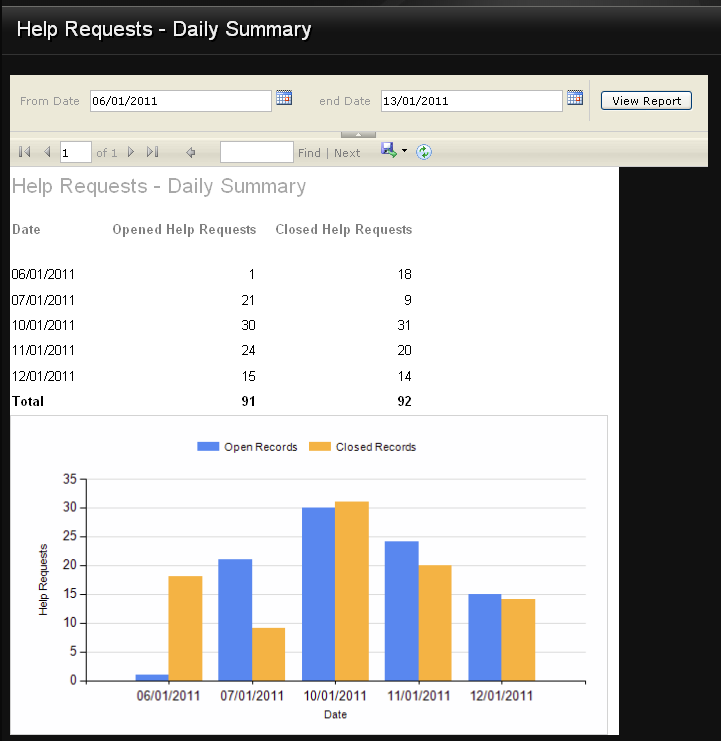
One of the account managers at work asked me if I could give her a summary of how many support requests are opened and closed each day.

Update 23 Jan 2011

Thanks to nedoboi for pointing out a bug with my code in the comments, and posting a fix!

Here’s a simplified version of our HelpRequest table.

CREATE TABLE [dbo].[HelpRequest](
	[Id] [int] IDENTITY(1,1) NOT NULL,
	[CreatedTimestamp] [datetime] NOT NULL,
	[ClosedTimestamp] [datetime] NULL
) ON [PRIMARY]

Each HelpRequest has a CreatedTimestamp and a ClosedTimestamp which are both datetimes. One way to get the Date part of a datetime is like so:

SELECT CAST( FLOOR( CAST( CreatedTimestamp AS float) ) AS smalldatetime) AS OpenedDate

Let’s put that in a function.

CREATE FUNCTION truncateDate ( @date datetime )
RETURNS datetime
AS
BEGIN 
    RETURN CAST( FLOOR( CAST( @date AS float) ) AS smalldatetime)
END

Now let’s do a GROUP BY to get all the HelpRequests opened on a given date range:

SELECT dbo.truncateDate(CreatedTimestamp) AS Report_Date,
COUNT(1) AS Qty_Opened
FROM HelpRequest
WHERE CreatedTimestamp BETWEEN '2010-01-01' AND '2011-01-13'
GROUP BY dbo.truncateDate(CreatedTimestamp)

We can do the same thing, but for closed help requests. No need to show that code.

Finally, do a join union to get the Open and the Closed for each day.

SELECT Report_Date, SUM(QTY_OPENED) AS Opened, SUM(QTY_CLOSED) AS Closed
FROM
(
	SELECT
	dbo.truncateDate(CreatedTimestamp) AS Report_Date,
	COUNT(1) AS Qty_Opened,
	0 AS QTY_CLOSED
	FROM HelpRequest
	WHERE CreatedTimestamp BETWEEN '2010-01-01' AND '2011-01-13'
	GROUP BY dbo.truncateDate(CreatedTimestamp)
UNION
	SELECT
	dbo.truncateDate(ClosedTimestamp) AS Report_Date,
	0 AS QTY_OPENED,
	COUNT(1) AS QTY_CLOSED
	FROM HelpRequest
	WHERE ClosedTimestamp BETWEEN '2010-01-01' AND '2011-01-13'
	GROUP BY dbo.truncateDate(CLOSEDTIMESTAMP)
) DATES
GROUP BY Report_Date
ORDER BY Report_Date

Mega-ugly, but it works. Too bad I don’t have a DBA to help me tidy it up! Feel free to write a comment with any suggestions.
Thanks again to nedoboi for the bug fix.

OK, final task is to parameterize the above query and then add it to SQL Server Reporting Services. A little bit of playing and, voila;