Receiving AS2 messages with .NET

By request, this is a follow up to my “Send an AS2 message with .NET” from July 2010. This time we will be receiving AS2 (Applicability Statement 2) messages.

Start with an “ASP.NET Web Application” and then add a “Generic Handler” to it, call it AS2Listener.ashx.

Add the following code to the ProcessRequest method:


public void ProcessRequest(HttpContext context)
{
    string sTo = context.Request.Headers["AS2-To"];
    string sFrom = context.Request.Headers["AS2-From"];
    string sMessageID = context.Request.Headers["Message-ID"];

    if (context.Request.HttpMethod == "POST" || context.Request.HttpMethod == "PUT" ||
       (context.Request.HttpMethod == "GET" && context.Request.QueryString.Count > 0))
    {

        if (sFrom == null || sTo == null)
        {
            //Invalid AS2 Request.
            //Section 6.2 The AS2-To and AS2-From header fields MUST be present
            //    in all AS2 messages
            if (!(context.Request.HttpMethod == "GET" && context.Request.QueryString[0].Length == 0))
            {
                AS2Receive.BadRequest(context.Response, "Invalid or unauthorized AS2 request received.");
            }
        }
        else
        {
            AS2Receive.Process(context.Request, WebConfigurationManager.AppSettings["DropLocation"]);
        }
    }
    else
    {
        AS2Receive.GetMessage(context.Response);
    }
}

Now you’ll need to create your AS2Receive class. The simple methods are AS2Receive.BadRequest and AS2Receive.GetMessage:


public static void GetMessage(HttpResponse response)
{
    response.StatusCode = 200;
    response.StatusDescription = "Okay";

    response.Write(@"<!DOCTYPE HTML PUBLIC ""-//W3C//DTD HTML 3.2 Final//EN"">"
    + @"<HTML><HEAD><TITLE>Generic AS2 Receiver</TITLE></HEAD>"
    + @"<BODY><H1>200 Okay</H1><HR>This is to inform you that the AS2 interface is working and is "
    + @"accessable from your location.  This is the standard response to all who would send a GET "
    + @"request to this page instead of the POST context.Request defined by the AS2 Draft Specifications.<HR></BODY></HTML>");
}

public static void BadRequest(HttpResponse response, string message)
{
    response.StatusCode = (int)HttpStatusCode.BadRequest;
    response.StatusDescription = "Bad context.Request";

    response.Write(@"<!DOCTYPE HTML PUBLIC ""-//W3C//DTD HTML 3.2 Final//EN"">"
    + @"<HTML><HEAD><TITLE>400 Bad context.Request</TITLE></HEAD>"
    + @"<BODY><H1>400 Bad context.Request</H1><HR>There was a error processing this context.Request.  The reason given by the server was:"
    + @"<P><font size=-1>" + message + @"</Font><HR></BODY></HTML>");
}

The one that does all the work is AS2Receive.Process. In this simple example all it will do is read the message and write it to a new text file in the given dropLocation folder.

public static void Process(HttpRequest request, string dropLocation)
{
    string filename = ParseFilename(request.Headers["Subject"]);

    byte[] data = request.BinaryRead(request.TotalBytes);
    bool isEncrypted = request.ContentType.Contains("application/pkcs7-mime");
    bool isSigned = request.ContentType.Contains("application/pkcs7-signature");

    string message = string.Empty;

    if (isSigned)
    {
        string messageWithMIMEHeaders = System.Text.ASCIIEncoding.ASCII.GetString(data);
        string contentType = request.Headers["Content-Type"];

        message = AS2MIMEUtilities.ExtractPayload(messageWithMIMEHeaders, contentType);
    }
    else if (isEncrypted) // encrypted and signed inside
    {
        byte[] decryptedData = AS2Encryption.Decrypt(data);

        string messageWithContentTypeLineAndMIMEHeaders = System.Text.ASCIIEncoding.ASCII.GetString(decryptedData);

        // when encrypted, the Content-Type line is actually stored in the start of the message
        int firstBlankLineInMessage = messageWithContentTypeLineAndMIMEHeaders.IndexOf(Environment.NewLine + Environment.NewLine);
        string contentType = messageWithContentTypeLineAndMIMEHeaders.Substring(0, firstBlankLineInMessage);

        message = AS2MIMEUtilities.ExtractPayload(messageWithContentTypeLineAndMIMEHeaders, contentType);
    }
    else // not signed and not encrypted
    {
        message = System.Text.ASCIIEncoding.ASCII.GetString(data);
    }

    System.IO.File.WriteAllText(dropLocation + filename, message);
}

We have some logic at the start to figure out if the message is signed, or if it’s encrypted and signed. Note that this code always assumes that if a message is encrypted it is also signed, and doesn’t allow for the message to be encrypted but not signed – although that is a valid AS2 scenario.

Let’s deal with receiving signed messages first, in AS2MIMEUtilities:

public class AS2MIMEUtilities
{
    public const string MESSAGE_SEPARATOR = "\r\n\r\n";

    /// <summary>
    /// Extracts the payload from a signed message, by looking for boundaries
    /// Ignores signatures and does checking - should really validate the signature
    /// </summary>
    public static string ExtractPayload(string message, string contentType)
    {
        string boundary = GetBoundaryFromContentType(contentType);

        if (!boundary.StartsWith("--"))
            boundary = "--" + boundary;

        int firstBoundary = message.IndexOf(boundary);
        int blankLineAfterBoundary = message.IndexOf(MESSAGE_SEPARATOR, firstBoundary) + (MESSAGE_SEPARATOR).Length;
        int nextBoundary = message.IndexOf(MESSAGE_SEPARATOR + boundary, blankLineAfterBoundary);
        int payloadLength = nextBoundary - blankLineAfterBoundary;

        return message.Substring(blankLineAfterBoundary, payloadLength);
}

/// <summary>
/// Extracts the boundary from a Content-Type string
/// </summary>
/// <param name="contentType">e.g: multipart/signed; protocol="application/pkcs7-signature"; micalg="sha1"; boundary="_956100ef6a82431fb98f65ee70c00cb9_"</param>
/// <returns>e.g: _956100ef6a82431fb98f65ee70c00cb9_</returns>
public static string GetBoundaryFromContentType(string contentType)
{
    return Trim(contentType, "boundary=\"", "\"");
}

/// <summary>
/// Trims the string from the end of startString until endString
/// </summary>
private static string Trim(string str, string start, string end)
{
    int startIndex = str.IndexOf(start) + start.Length;
    int endIndex = str.IndexOf(end, startIndex);
    int length = endIndex - startIndex;

    return str.Substring(startIndex, length);
}

Oh, OK, erm the <summary> of ExtractPayload says it all. All I do is truncate the message signature off the message, by looking for the message part boundaries. It should of course really check that the message signature is valid.

Now let’s handle encrypted messages with AS2Encryption.Decrypt:

internal static byte[] Decrypt(byte[] encodedEncryptedMessage)
{
    EnvelopedCms envelopedCms = new EnvelopedCms();
    envelopedCms.Decode(encodedEncryptedMessage);
    envelopedCms.Decrypt();
    return envelopedCms.Encode();
}

And that, Dear reader is a simple example of how to receive either: unsigned & unencrypted;  signed; or encrypted & signed AS2 messages. What is missing is the necessary checking that the signature is valid, and handling of encrypted but unsigned messages.
Entity Framework Code-First CTP5 walkthrough

A couple of months ago I watched some of videos from Microsoft PDC 2010 at http://player.microsoftpdc.com/

One of the interesting presentations was Jeff Derstadt and Tim Laverty’s “Code First with Entity Framework”, viewable here (or direct download here). In the demo, Jeff and Tim very quickly create a basic twitter clone using ASP.NET MVC 2 and EF Code-First CTP4.

For fun I decided to watch the talk and follow along in Visual Studio. This would give me a chance to play with some Microsoft bleeding edge pre-release stuff: ASP.NET MVC 3 (RC2) and Razor, NuGet, and EF Code-First CTP5 (CTP4 was the “Magic Unicorn Edition“).

If you are as lame as me, here’s some tips to help you do a similar walkthrough.

Getting started

You’ll need Visual Studio 2010, and to download ASP.NET MVC 3 (currently RC2) which also installs NuGet.

Once you’ve created your MVC application, you need to add EF Code-First by using NuGet. NuGet’s only been around for a couple of months and already it’s a gotten disorganised and is hard to find the right package. In the demo, Tim adds a reference to “EFCTP4” and indeed that is still present in NuGet. But if you dig around a bit and search for “EFCodeFirst”, well that appears to be EFCTP5. The package you should install is now called “EntityFramework”.

Changes

The first issue I came across was getting EF to talk to SQL Server, as mentioned in my previous post.

A few other things I’ve found that must have changed between CTP4 and CTP5:

1. I don’t think the [StoreIgnore] attribute exists any more. I couldn’t find it, and in my experiments it didn’t seem to be necessary to tell EF to ignore the calculated “TweetActivity” field. I did discover the [NotMapped] attribute which you can use if you want to tell EF not to save a property. I think it’s the same as [StoreIgnore].

2. When it comes time to setup the DB initialiser for populating the DB with static data, Tim does something like this:

public class TweetInitializer : AlwaysRecreateDatabase<TweetContext>

However, AlwaysRecreateDatabase doesn’t exist any more. I think:

public class TweetInitializer : DropCreateDatabaseIfModelChanges<TweetContext>

might be its replacement.

3. I had a strange issue when I tried to create the oData feed. Visual Studio couldn’t find the System.Data.Objects namespace. A quick fix was to add an empty “ADO.NET Entity Data Model” to my project, and then delete it.

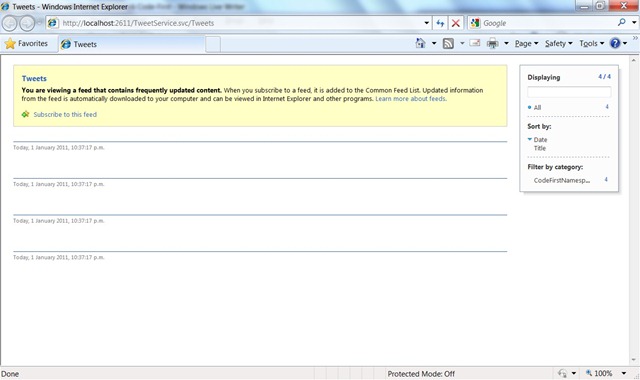
4. When you view your oData feed in your browser, by default it appears all purty:

feed

In order to see the raw XML you need to disable IE’s “feed reading view”.

Tools –> Internet Options –> Content tab –> Feeds and web slices –> Settings –> Uncheck “Turn on feed reading view”.

xml

System.Data.ProviderIncompatibleException was unhandled by user code

Message=The provider did not return a ProviderManifestToken string.

Or, how to run EF code-first without SQL Express.

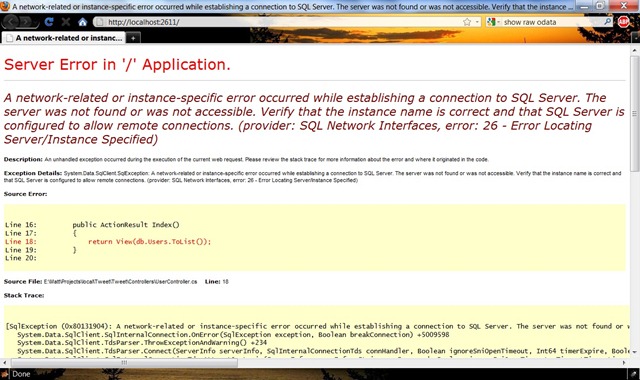
I got the above exception being thrown when I started playing around with Entity Framework’s Code-First CTP5. The inner exception revealed the true problem:

ysod

The problem is that by default EF Code-First tries to create your database on a SQL Express instance.

I don’t run SQL Express, I run SQL Server Developer edition. The solution is to add a connection string for the code-first database to your web.config (even though this database doesn’t yet exist):


<connectionStrings>
 <add name="TweetContext" connectionString="Data Source=.; Initial Catalog=Tweet; Integrated Security=SSPI;" providerName="System.Data.SqlClient" />
 </connectionStrings>

Note that the name (TweetContext) must match the name of your class which derives from DbContext, i.e.


public class TweetContext : DbContext

And you have to specify the DB name, i.e Initial Catalog=Tweet, but that database should not already exist, as EF code-first will create it for you.

First hands on with an Amazon Kindle 3

For Christmas 2010, and on a whim, I bought myself the 3G model of the Kindle 3. It finally arrived this morning, so it’s a late Christmas present.

I guess I’m a bit late getting one of these since they’ve been out for a while. The thing is, I normally try not to buy books. Don’t get me wrong, I’m always reading something, but usually it’s books that friends have lent me (hi Trent). I don’t like accumulating books because I’m always moving house (or country) and books are another thing to lag around. Right now I have a shelf of books at my parent’s house that has been sitting there for more than 5 years.

Lately I’ve been buying programming books though and those are usually very large and heavy. I left my copy of Code Complete 2 in NZ and I would have like to have brought it with me.

I’ve also been reading books on my iPhone through iBooks. So far only free classics, like Sherlock Holmes etc. Programming books in PDF format are too small for the iPhone.

I’d also been reading PDF ebooks on my netbook, by rotating the PDFs counter-clockwise in Acrobat reader, and then physically turning my netbook on its side. Very lo-tech. I’ve only been doing this at home though!

So iBooks on the iPhone and PDFs on the netbook were beginning to convince me that ebooks are the way forward. So I took the plunge with the Kindle.

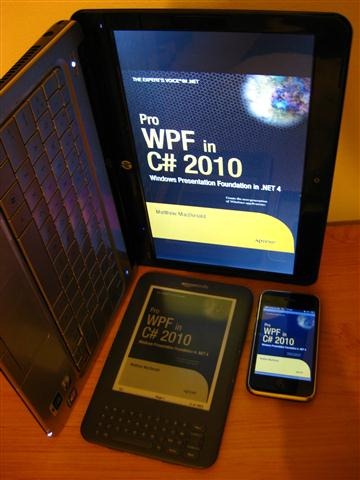
IMG_2304 (Small)

Above: my 3 generations of ebook reader – netbook, Kindle 3 and iPhone.

File Formats

Kindle supports Amazon’s DRM native Kindle file format, .AZW. Yuck, I didn’t realise it was DRM until now. The good thing about reading .AZW ebooks (i.e. those you buy Amazon.com) is that you can choose the font size, line spacing etc. This means that .AZW files don’t really have page numbers, because depending on your zoom level and your line spacing settings a book could have more or less pages. Instead, each paragraph has a position number, and the little progress bar tells you how far through the book you are. Academics and students are up in arms over the lack of page numbers, because it means they can’t easily use ebooks in citations for academic writing.

PDF

Another format it supports is PDF files. This was important to me as mentioned earlier, because I have PDFs of a number of programming books that I wanted to try to read on the Kindle.

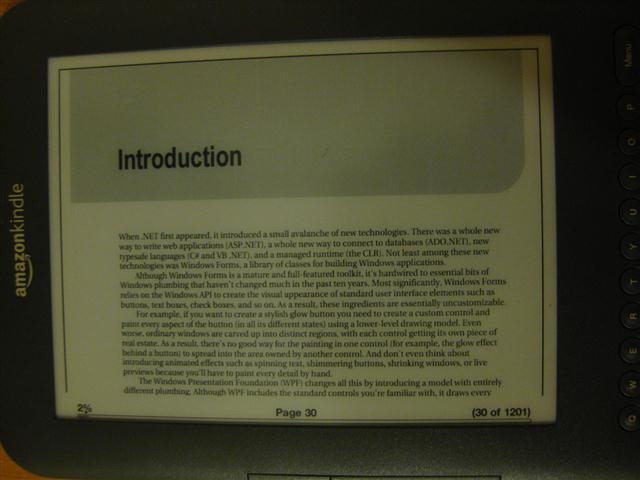
When viewing PDFs on the Kindle, the page numbers of the PDF are respected. But the downside of that is you can’t set your own font size and line spacing. The Kindle 3 is pretty small, about the size of a DVD cover. In fact I can fit the Kindle inside a DVD cover, which could make for an interesting and cheap carry case. And with all that bezel and the keyboard, the screen itself is even smaller. So when you view a PDF on that small screen in portrait mode the font size is really tiny. If you zoom in to make it more readable then you’ll have to constantly horizontal scroll which isn’t practical. A workaround is to put the Kindle into landscape mode, then the text is more readable and you only have to vertically scroll once to read a page.

IMG_2292 (Small)

Above: A bit too small to read comfortably…

IMG_2295 (Small)

Above: But in landscape mode it’s OK.

I only got the thing today so haven’t put any long hours in reading PDFs on it but I’ll update this post in a few weeks once I have.

Packaging

Kudos to Amazon for their “Certified Frustration Free” packaging. Pull one tab and the recyclable box opens, and there it is. No more “wrap rage”:

Worth it?

Now that I think about it, if ever there was a genre of books that quickly goes out of date, it’s programming books. So perhaps I shouldn’t have bought the Kindle for reading programming books on and instead just bought the books I want to read and then just leave them behind whenever I move house!

But I think it’ll still be worth it for buying and storing non-programming books with. Now I can build up my (ebook) library without worrying about accumulating luggage.

Update

Well it’s been a couple of weeks now, and as far as studying programming books cover to cover it works fine. But in terms of replacing the stack of programming reference books on my desk, it’s a no go. It takes too long to find anything.

SSRS the report definition is not valid hexadecimal value 0x00

I had this weird error the other day, when all my report definition .rdl files seemed to get corrupted somehow. I’m not sure what caused it but it might have been something to do with Tortoise SVN.

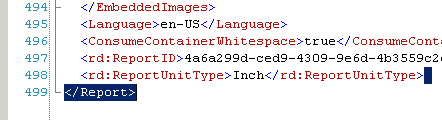
The error was something like “[rsInvalidReportDefinition] SSRS the report definition is not valid. Details: ‘.’, hexadecimal value 0x00 is an invalid character”. A screenshot is below:

When I opened the rdl it looked fine, and when I viewed the source of it in Visual Studio it also looked fine. But the telltale sign was that I could not  delete the last character in the .rdl file, a ‘>’ which closed off the final </Report> tag. In the end the fix was quite simple, all I did was delete that last </Report> tag and type it in again.

Hope this helps someone.

Add a link to another page on Windows Phone 7

Greetings from rainy Thailand, where I am on holiday. And on rainy days like today I’m learning Silverlight on the Windows Phone 7 platform.

If you need to link to another page in your Silverlight application on Windows Phone 7, the easiest way is to use a HyperlinkButton, like so:

 <HyperlinkButton Content="image page" NavigateUri="/ImagePage.xaml" />

It took me a bit of trial and error to realise that I needed to put a “/” at the start of the NavigateUri. MSDN’s help page didn’t have a code sample either.

Microsoft’s Tech Fest 2010 Auckland

A highlight of the year for Microsoft developers is Tech Ed, Microsoft’s only annual developer conference in NZ. Fortunately it’s held just down the road from my work, at Sky City Convention center so I’ve gotten to go to many sessions over the last few years.

The closing party, “Tech Fest” is always a highlight too.  A great venue, free beer, the chance to catch up with former colleagues and university friends, and of course the music. Every year that I’ve been Microsoft has done a great job of booking really good “world famous in NZ” bands to perform. 2007: Evermore. 2008: Opshop. 2009: Katchafire and Elemeno P. and 2010: Midnight Youth and Gin Wigmore.

Midnight Youth at Tech Fest 2010

Midnight Youth did a great job getting the crowd going. They sounded polished and the crowd was loving it. Then Gin came on. Now, I really like Gin’s music and her performance was great, but after being warmed up by a rock band the crowd wanted to party some more. The consensus amongst the punters was that Gin Wigmore should have warmed up the crowd first, and then Midnight Youth it finish off.

Gin Wigmore
Gin Wigmore at Tech fest 2010

Windows XP: password has expired, but you do not have permission to change the password

Since I work in IT, I’m occasionally asked to do tech support for family and ex-girlfriends, even though that’s not my area of expertise. Yesterday a friend had a problem I’d never seen before.

After bootup, she would be presented with the standard Windows XP login screen, with only one user account available for login. She clicks her name, enters her password, and then gets a message “your password has expired, you must enter a new one” or however the exact text goes.

So she enters a new password but then gets “You do not have permission to change your password”, which prevents her from logging in and takes her back to the login screen.

After trying a few different things to no avail, I tried googling the problem on my iPhone. But I couldn’t even find anyone with the same problem, let alone a solution.

Safe mode to the rescue

I tried booting Win XP into safe mode, and luckily at the login prompt I could now choose to login as Administrator (with no password!). Once inside I checked the account my friend was trying to login as, and sure enough the “User cannot change password” box was checked, and the “Password never expires” box was unchecked.

I restored the settings back to how they should be – password never expires and user can change the password. So that fixed the problem, but I was still wondering how those settings got set like that. My friend sheepishly admitted that she’d been playing around with those settings a while ago when she had password problems with her ISP. D’oh!

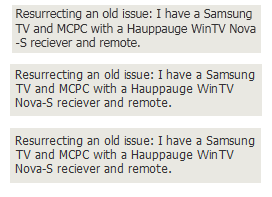
IE9 Beta renders blurry text

I’m just giving Internet Explorer 9 Beta a try, and my first impression is that the text in web pages looks blurry. See:

That’s the same web page viewed in 3 different browsers. Which one looks the worst to you?

Top – IE9

Middle – Chrome

Bottom – Firefox.

I also tried to create this post using wordpress.com’s post editor in IE9, but it didn’t work – I couldn’t change the cursor position using my mouse, and the image upload dialog box wouldn’t appear. Which is ironic since Microsoft is touting WordPress’s IE9 enhancements.

Update: Scott Hanselman has explained the IE9 blurry text issue.