Generating Swagger example responses with Swashbuckle

Update April 2020: You probably don’t need to do it this way any more. Swashbuckle.AspNetCore supports request examples via XML comments. See my blog post.

Update May 4th 2017: I have created a new NuGet package called Swashbuckle.Examples which contains the functionality I previously described in this blog post. The code lives on GitHub.

I have also created a .NET Standard version of the NuGet package at Swashbuckle.AspNetCore.Filters, which is also on GitHub.

Swashbuckle is a tool for generating Swagger, the API description language, from your ASP.NET Web Api solution.
Using Swashbuckle, which provides Swagger-UI, you can create pretty living documentation of your web api, like this:
swagger

Documenting the Response

In this post I am going to show you how to document the Response, and a new way to generate some response examples.

You can specify the type of response for Swashbuckle a number of ways. Consider a simple API endpoint which returns a list of Countries:

public class CountriesController : DefaultController
{
    [HttpGet]
    public async Task<HttpResponseMessage> Get()
    {
        var resource = new List<Country>
        {
            new Country {Code = "AR", Name = "Argentina"},
            new Country {Code = "BR", Name = "Brazil"},
            // etc etc omitted for brevity
        };

        return Request.CreateResponse(HttpStatusCode.OK, resource);
    }
}

One way of describing the response code and content for Swashbuckle is using a combination of XML comments, and the ResponseType attribute, like so:

/// <response code="200">Countries returned OK</response>
[HttpGet]
[ResponseType(typeof(IEnumerable<Country>))]
public async Task<HttpResponseMessage> Get()
{

However, this only allows for one type of response.

If your API method can return multiple types, i.e. in the case of an error, then you can use the new SwaggerResponse attribute:

[HttpGet]
[SwaggerResponse(HttpStatusCode.OK, Type=typeof(IEnumerable<Country>))]
[SwaggerResponse(HttpStatusCode.BadRequest, Type = typeof(IEnumerable<ErrorResource>))]
public async Task<HttpResponseMessage> Get(string lang)
{

The Swagger 2.0 spec allows for examples to be added to the Response. However, at time of writing Swashbuckle doesn’t support this. Fortunately Swashbuckle is extendible so here is a way of doing it.

Install my Swashbuckle.Examples NuGet package.

Decorate your methods with the new SwaggerResponseExample attribute:

[SwaggerResponse(HttpStatusCode.OK, Type=typeof(IEnumerable<Country>))]
[SwaggerResponseExample(HttpStatusCode.OK, typeof(CountryExamples))]
[SwaggerResponse(HttpStatusCode.BadRequest, Type = typeof(IEnumerable<ErrorResource>))]
public async Task<HttpResponseMessage> Get(string lang)

Now you’ll need to add an Examples class, which will implement IExamplesProvider to generate the example data

public class CountryExamples : IExamplesProvider
{
    public object GetExamples()
    {
        return new List<Country>
        {
            new Country { Code = "AA", Name = "Test Country" },
            new Country { Code = "BB", Name = "And another" }
        };
    }
}

And finally enable the ExamplesOperationFilter when you configure Swashbuckle’s startup.

configuration
    .EnableSwagger(c =>
    {
        c.OperationFilter<ExamplesOperationFilter>();
    })
    .EnableSwaggerUi();

Now that we’ve done all that, we should see the examples output in our swagger.json file, which you can get to by starting your solution and navigating to /swagger/docs/v1.

response

And then, when you browse the swagger-ui at /swagger/ui/index, instead of an autogenerated example like this:
response old

You’ll see your desired example, like this:
response new

Be sure to check out Part 2, where we again use Swashbuckle to generate example requests.

Run a Windows Azure cloud service locally without the Azure compute emulator

A big bugbear when developing Azure cloud services is the Azure emulator. You make a code change and the write – compile – debug process is slowed down big time because you have to wait for the Azure emulator to start up every time.

One project I worked on had a Web API running in an Azure cloud service and an ASP.NET MVC website running in another cloud service. So in order to develop it locally we had to run 2 instances of Visual Studio 2013 and each of them would fire up an emulator. Needless to say this was quite the resource hog and we’d every now and then see unexpected issues with Visual Studio or the emulators. Oh and the emulators would fight over which ports they would run on so we had to ensure we started debugging the API first so that it would get port 443 and then start the website which would default to 445.

So why can’t we just install our Web API and ASP.NET MVC website into IIS and not use the emulators? Well there are two blockers:

  1. The Azure diagnostics config will throw exceptions if we’re not running in Azure
  2. Settings are read from cloud config values in ServiceConfiguration.cscfg via RoleEnvironment.GetConfigurationSettingValue which needs Azure

My colleague Dylan came up with a solution. Basically, in the Global.asax.cs of both our website and our web api, we need to check if we’re running in Azure or not.

If we are in Azure, then use 1. configure Azure diagnostics config, and 2. read cloud config values using the default RoleEnvironment.GetConfigurationSettingValue.

If we are not in Azure, then 1. don’t configure Azure diagnostics, and 2. read cloud config values from ServiceConfiguration.cscfg manually via XML. parsing.


if (RoleEnvironment.IsAvailable) // we are in Azure
{
    Trace.Listeners.Add(new DiagnosticMonitorTraceListener());
    Trace.AutoFlush = true;
}
else
{
    var di = new DirectoryInfo(HttpContext.Current.Server.MapPath("~"));
    var solutionRoot = di.Parent;

    var xdoc = XDocument.Load(solutionRoot.FullName + @"\Identity.Web.Azure\ServiceConfiguration.cscfg");
    ConfigurationSettingsProvider.Current = new NotInRoleEnvirovmentConfigurationProvider(xdoc, "Identity.Web");
}

Our ConfigurationSettingsProvider.Current is by default a DefaultConfigurationSettingsProvider which uses RoleEnvironment.GetConfigurationSettingValue(key) to read the cloud config – we use one of these when we’re in Azure.

Our NotInRoleEnvirovmentConfigurationProvider reads the .cscfg file using XDocument.

So now I can install our website and web api into IIS locally – and code changes are visible after a compile. No need to run 2 Visual Studios and wait for the memory hungry emulator to startup every time. If I need to debug I can Debug -> Attach to process. Much more productive :-)

Should I cycle: on hold for now

I started building a prototype for Should I cycle on iOS 8 and pretty early on I’ve hit a roadblock. What I wanted was a daily scheduled notification to popup telling me whether conditions were right for cycling or not.

I wanted to use iOS’s local notifications to do this – but I don’t think it can be done. Sure, you can schedule a local notification to popup at say 7:30am, but what’s displayed on the notification has to be set at the time the notification is scheduled. What this means is let’s say at 9pm at night I schedule a notification for 7:30am the next day. And at 9pm the sky is clear and conditions are fine. Then at 7:30am the next day it’s raining. Well, the 7:30am notification popup is going to say “Sky is clear” because that’s what the conditions were like when the notification was scheduled.

So that’s annoying.

What I want to do can be done via remote notifications – i.e. the I would have to schedule on a web server a push notification out to the mobile at 7:30am the next day. But that would be pretty complicated to setup for a prototype.

So I decided I would give up on the push notification for now and instead just check the current weather / cycling conditions whenever the app is started.

But then another thing happened – I gave up cycling to work for various reasons. So for now I have no motivation to work on this app. Maybe one day I’ll pick it up again.

Browse and debug an Azure web role website running locally on a mobile device

So, you’re developing an Azure website using a Web role, and now you want to see what that website looks like on a mobile device.

First, follow my instructions here to set up port forwarding for your website.

Once you’ve done that, assuming your mobile device is on the same network as your PC running the Azure web role, you should just be able to open the URL for the website in your mobile web browser – in my case this https://10.200.34.201:800/

If you need to debug the traffic between your Azure web role and the mobile device, you can do that using Fiddler or Charles proxy. Fiddler instructions here. Charles instructions here. And SSL instructions for Charles here, if your site runs on SSL.

If you need to manipulate the traffic between Azure and the mobile browser, you can use Fiddler’s custom rules to do that – in my case I had to inject a “IsMobile=true” header. Fiddler -> Rules -> Customize Rules. Locate “static function OnBeforeRequest” and add the following line to it. oSession.oRequest[“IsMobile”] = “true”;

Should I cycle: implementing the API using Node.js

Now that I have my API defined, and it is pretty darn simple, it’s time to implement it.

During my day job I write ASP.NET MVC websites and Web APIs, but part of the reason for doing a side project such as this is the chance to dabble in different technologies.

Since my API is so simple I thought I’d give it a go using Node.js.

I found this nice tutorial which got me started.

As per my API documentation, my endpoint will look like this:

/v1/cycle?location=London,uk&airquality=wa7,wa9

My API is going to:

  1. Take two arguments
    1. weather location
    2. air quality monitoring locations (a list)
  2. Call an external API for each of those arguments
  3. Parse the results from those external APIs into a result and return it.

Since Node is all about doing stuff in a non-blocking parallel way, I have to make each of the external API calls in parallel. And since the air quality argument is actually a list of locations, I can call each one of them in parallel too. I came across the async library and a helpful post by Sebastian Seilund on how to use it. Basically, I can use async.parallel to start two tasks – one which looks up the weather, and the other which calls async.forEach to lookup the air quality (also in parallel!).

The results of each of these are collated into an object named shouldicycle and returned via JSON.

router.get('/v1/cycle', function(req, res, next) {
    var location = req.query.location;
    var airQualities = req.query.airquality;
    var shouldicycle = {};
    shouldicycle.pollution = [];

    async.parallel([
        // Get weather
        function(callback) {
            if (location) {
                weather.lookupCurrentWeather(location, shouldicycle, callback);
            }
            else {
                callback();
            }
        },
        // Get airquality
        function(callback) {
            if (airQualities) {
                var airQualityArray = airQualities.split(',');
                async.forEach(airQualityArray, function(airQuality, airQualityCallback) {
                    weather.lookupAirQuality(airQuality, shouldicycle, airQualityCallback);
                }, callback);
            }
            else {
                callback();
            }
        }
    ],
    // This is called when weather and airquality are done
    function(err) {
        if (err) return next(err);
        res.json(shouldicycle);
    });
});

Anyway, that’s enough source code for one blog posting.
The entire source is in github over here. All of the logic lives in server.js and weather.js. Code reviews are welcome, this is my first node app :-)

Debugging node

I developed the shouldicycle API on a mixture of Mac and Windows machines, but when it came to debugging I found good old Visual Studio 2013 with Node.js Tools for Visual Studio to be perfect for the job. Not sure what I would do if I had to debug my node app on my Mac.

Deploying it to Heroku

Since I am in Node land I decided to deploy it to Heroku. I could have deployed it to Azure, but since deploying to Azure is part of my day job I thought I’d see how Heroku works.

I found this helpful guide on deploying a node app to Heroku.

So yay, my minimum viable product API is up!

http://ancient-beyond-7553.herokuapp.com/api

Here’s a sample query for London:

http://ancient-beyond-7553.herokuapp.com/api/v1/cycle?location=london,uk&airquality=WA7,WA9

Todo

There’s still plenty to be done on that API. A bit of validation and checking on the input parameters for a start. And to implement caching too, both of my results and also of the results I retrieve from the weather and pollution APIs. But what I’ve done so far is enough for a minimum viable product, so now I can move on and get started with the iOS / Android app.

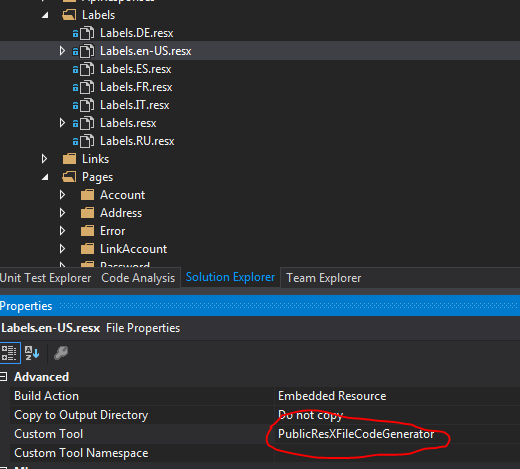
A custom tool ‘PublicResXFileCodeGenerator’ is associated… compiler warning

If you ever have a compiler warning saying

A custom tool ‘PublicResXFileCodeGenerator’ is associated with file ‘blah’, but the output of the custom tool was not found in the project. You may try re-running the custom tool by right-clicking on the file in the Solution Explorer and choosing Run Custom Tool.image001

To remove the compiler warning you can just remove the Custom Tool by clicking on the Resource file, pressing F4 to bring up the Properties and then removing the entry for Custom Tool. Easy.

image003

Browse a local Azure Web role from another computer

So, you’re developing an Azure website that runs as a web role, which means you use the Azure Compute Emulator when running it locally. And now you want to test or debug that local website in an older browser, such as IE8.

In this situation I have IE8 running on another computer (or maybe a VM), so I need to open up access to my website which is running locally.

Step 1. Find out your IP address – ipconfig. Mine is 10.200.34.201 (NB. I’ve highlighted the wrong field in the screenshot).
image002

Step 2. Find out which IP address and port the compute emulator is running on, by looking in the System Tray at the IIS Express icon. Note that even though I access the website locally on https://127.0.0.2:447 in my browser, it runs on a different IP and port in the emulator, https://127.255.0.4:448. I don’t know/care why.
image001

Step 3. Download and install Pass Port from http://sourceforge.net/projects/pjs-passport/. Yes it’s old but it does the job of forwarding ports nicely, which is what we need to do.

Step 4. Set up a Pass Port port forwarding rule with your IP address and any port (I’m using 800) to the IP address and port of the emulator. N.B. you may need to run PassPort as an Administrator if it doesn’t seem to be working.

image004Step 5. Open up that port (800) in the Windows Firewall:

image003

That should be it. Now you can connect on the remote computer to your Azure Emulator running locally. Obligatory screenshot of my site running in IE8:

image005

Beginner’s guide to add a toolbar to an iOS iPhone app with a Storyboard

I’ve been playing around with iPhone apps a little bit. I’m certainly no expert though, I’m still a beginner myself.

A basic task is to add a toolbar with buttons to your application using XCode.

Lots of samples online are using old versions of XCode. Allow me to demonstrate how to add a toolbar to an app, using XCode 4.2 with Storyboards.

Create a new Project

In Xcode, File -> New Project. Choose Single View Application. I named my application com.mattfrear.toolbars.

Add a toolbar

If you can’t see it, choose View -> Navigators -> Show Project Navigator.

If you can’t see it, choose View -> Utilities -> Show Object Library.

Open the MainStoryboard_iPhone.storyboard. Click on the View.

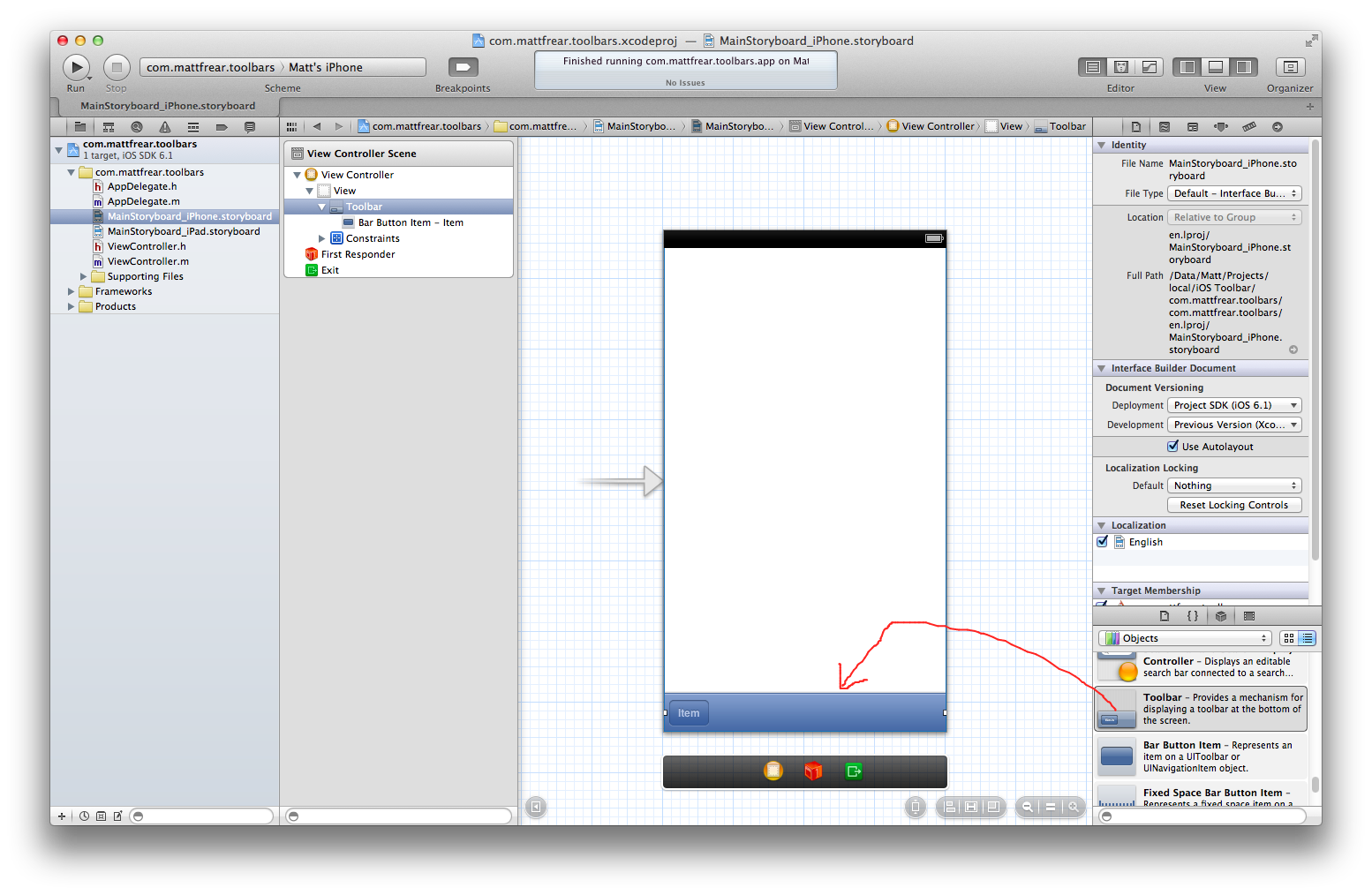
In the Object Library (which should be in a window at the bottom right of your screen), scroll to the bottom and choose Toolbar. Drag it onto the View. Your screen should look like this:

Screen Shot 2013-08-29 at 16.05.42

Wire up the button

Now we need to add some code which will be fired when the button is clicked.

Open ViewController.m. At the end of the file, before the last @end, paste the following:

-(IBAction) buttonClicked
{
    UIAlertView *alert = [[UIAlertView alloc] initWithTitle:@"Hello world"
                                                    message:@"You clicked the button"
                                                   delegate:nil
                                          cancelButtonTitle:@"OK"
                                          otherButtonTitles:nil];
    [alert show];
}

This is the code which will execute when the button is clicked, and it will display a simple Hello World popup.

Our final step is to wire up the button to this method. To make this easier we can use the Assistant Editor.

In Xcode, go View -> Assistant Editors on Right. Then View -> Show Assistant Editor.

If your screen is small, you might want to go View -> Utilities -> Hide Utilities.

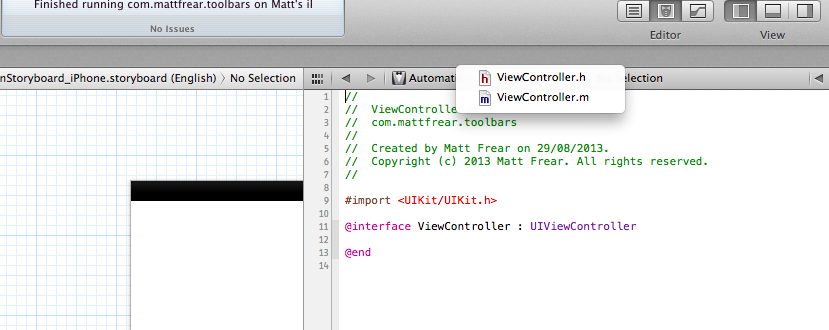
The Assistant Editor should have ViewController.h open. In the Assistant Editor toolbar at the top, it should say Automatic > ViewController.h > No Selection. In that toolbar, click on ViewController.h and choose ViewController.m from the dropdown.

Screen Shot 2013-08-29 at 16.30.55

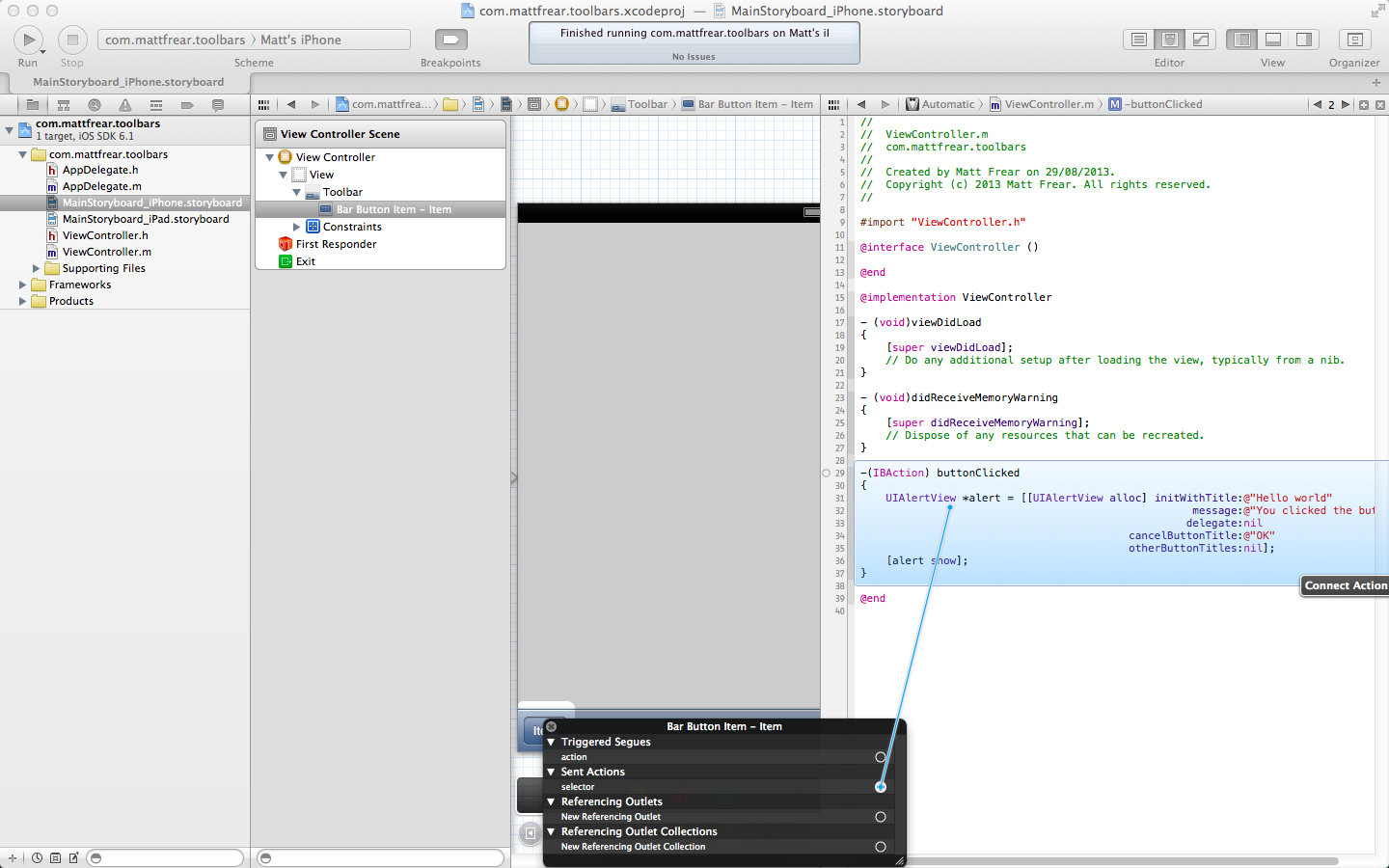
In the main window, click on the toolbar we added to our View, then on our “Item” toolbar button. Now right click it to bring up the “Bar Button Item – Item” menu.
Under Sent Actions, next to selector there is a + button. Click that and then drag it to the buttonClicked method in ViewController.m.

Screen Shot 2013-08-29 at 16.34.40 (2)

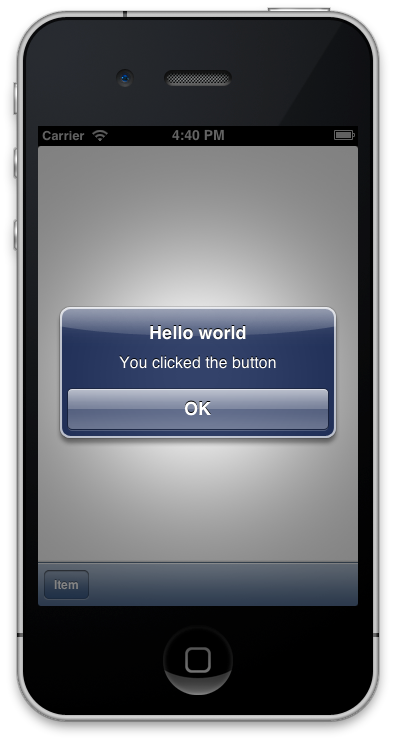
Hooray! Now our toolbar button is wired up to the method. Let’s run our app to test it.

In XCode’s toolbar, next to the big Run and Stop button you should see a drop down. Choose iPhone Simulator, then click the Run button.

Screen Shot 2013-08-29 at 16.40.16

Woop!

Book review – Instant Meteor Javascript Framework Starter

Last year I started playing around with Meteor, a new javascript framework. I didn’t get much further than playing with and tweaking sample applications.

When it came time to start creating my own app in Meteor though, I was a bit lost. I didn’t really know where to start.

I was given a copy of Instant Meteor Javascript Framework Starter which I read over the weekend. The book was a good read – I especially enjoyed the opening chapters which covered what Meteor is and why it’s cool, better than the official Meteor docs cover.

It covered all the Meteor basics well, and I would recommend the book to anyone who wants to get started building their own app with Meteor. Reading it has gotten me excited about Meteor again!

RavenDB – Input string was not in a correct format

In a RavenDB ASP.NET MVC app I was recently working on, I was constantly seeing good ol’ System.FormatException – “Input string was not in a correct format”.

My entities all use ints for their Ids.

After a while I noticed (via the RavenDB Management Console) that my entities had Ids like “tab/123”, but previously the Ids were like “tab-123”.

The problem turned out to be that I had accidentally removed this line while doing some refactoring:


documentStore.Conventions.IdentityPartsSeparator = "-";

Once I put that back in I stopped seeing the System.FormatException and all was right in the world.