Retrieve child items with an integer ID in a many-to-many with RavenDB

I have a many to many relationship, like so

public class Movie
{
   public int Id { get; set; }
   public string Title { get; set; }
   public int[] ActorIds { get; set; }
   // etc
}

public class Actor
{
   public int Id { get; set; }
   public int Name { get; set; }
   // etc
}

When I load a Movie, I also want to load all of the Actors associated with that Movie.

This can be done using Raven’s Load<T>(IEnumerable<System.ValueType> ids) method, and casting the int[] to an array of ValueType, like so:

var movie = RavenSession.Load<Movie>(movieId);
var actorIds = movie.TabIds.Cast<System.ValueType>();

var actors = RavenSession.Load<Actor>(actorIds).OrderBy(x => x.Name);

Regular expression replace in Visual Studio 2010

I can never remember how to do replaces in Visual Studio using regular expressions, so here’s a quick example.

I’ve got 30 classes that implement BasePage. I want to change this:

public class VariationsPage : BasePage

to this:

public class VariationsPage : BasePage<VariationsPage>

The regex should find:

public class {.*} \: BasePage

and replace with:

public class \1 \: BasePage<\1>

Edit: the syntax changed in Visual Studio 2012 and onwards! Instead of {.*} and \1 it is now (.*) and $1.

Meteor todos sample – add buttons to move items up and down

This is the sixth in a x part series about Meteor for beginners.

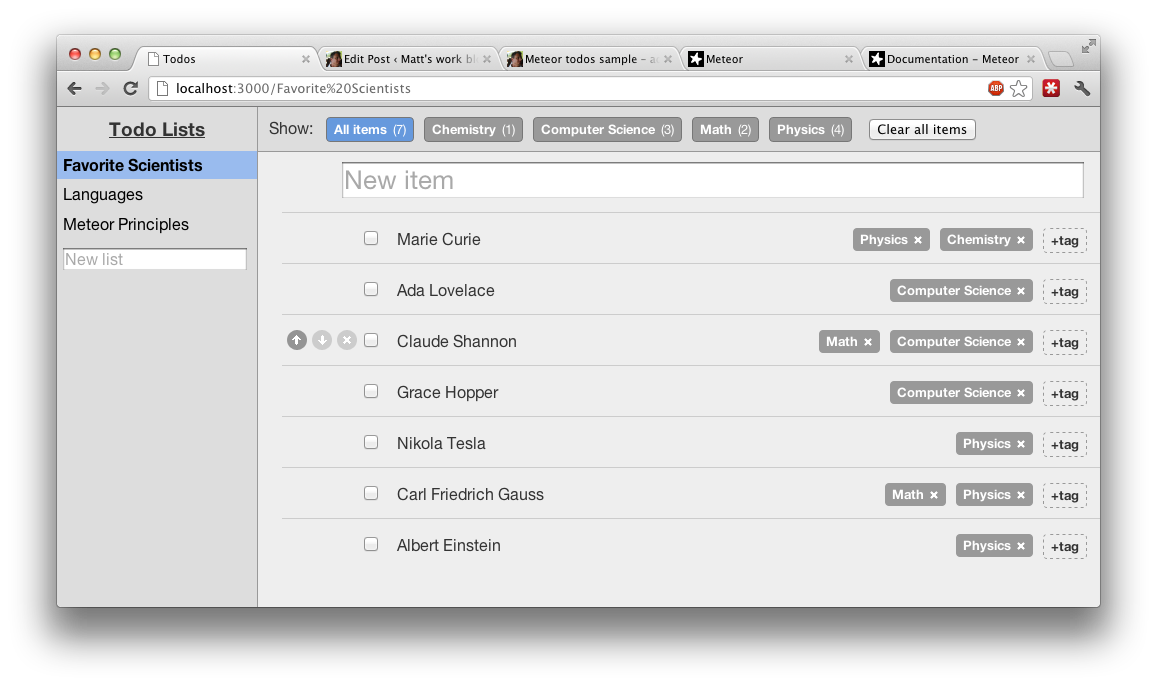
Let’s add the buttons to the UI first. I’ve decided to put them next to the delete button, so I will copy the html and css for the “destroy” class so that the UI is consistant.

<template name="todo_item">
  <li class="todo {{done_class}}">
    {{#if editing}}
      <div class="edit">
        <input id="todo-input" type="text" value="{{text}}" />
      </div>
    {{else}}
      <div class="move-up"></div>
      <div class="move-down"></div>
      <div class="destroy"></div>
      ...
#item-list .todo .destroy {
    cursor: pointer;
    position: absolute;
    margin-left: 50px;
    left: 5px;
    top: 15px;
    height: 20px;
    width: 20px;
}

#item-list .todo .move-up {
    cursor: pointer;
    position: absolute;
    left: 5px;
    top: 15px;
    height: 20px;
    width: 20px;
}

#item-list .todo .move-down {
    cursor: pointer;
    position: absolute;
    margin-left: 25px;
    left: 5px;
    top: 15px;
    height: 20px;
    width: 20px;
}

#item-list .todo .display, #item-list .todo .edit {
    margin-left: 80px;
    height: 100%;
    width: auto;
    float: left;
    padding-top: 18px;
    line-height: 1;
}

#item-list .todo:hover .move-up {
    background: url('/arrowup.png') no-repeat 0 0;
}

#item-list .todo .move-up:hover {
    background-position: 0 -20px;
}

#item-list .todo:hover .move-down {
    background: url('/arrowdown.png') no-repeat 0 0;
}

#item-list .todo .move-down:hover {
    background-position: 0 -20px;
}

PS. I spent longer making the up down arrow icons in an image editor than writing the code for this post!

Items in each todo list are currently sorted by their timestamp:

Template.todos.todos = function () {

  ...

  return Todos.find(sel, {sort: {timestamp: 1}});
};

I will continue to use the timestamp to control the sort order. When the up button is clicked, set the current item’s timestamp to be 1ms less than the item above it.

Template.todo_item.events = {
  ...

  'click .move-up': function() {
    var todos = Template.todos.todos().fetch();
    var currentItemIndex = todoRanking(this, todos);

    if (currentItemIndex > 0) {
      var todoAboveMe = todos[currentItemIndex - 1];
      Todos.update(this._id, {$set: {timestamp: todoAboveMe.timestamp - 1}});
    }
  }
var todoRanking = function(todoItem, todoArray) {
  var ids = todoArray.map(function (todo) { return todo._id; });
  return ids.indexOf(todoItem._id);
};

We can do something similar to move an item down.

  'click .move-down': function() {
    var todos = Template.todos.todos().fetch();
    var currentItemIndex = todoRanking(this, todos);

    if (currentItemIndex < todos.length -1) {
      var todoBelowMe = todos[currentItemIndex + 1];
      Todos.update(this._id, {$set: {timestamp: todoBelowMe.timestamp + 1}});
    }
  }

See the code on github.

Meteor todos sample – remove all items

This is the fifth in a x part series about Meteor for beginners.

Exercise 2: Add a Remove all items button

As usual, let’s add the button to the html first. I’m gonna stick it in the top frame next to the list of tags cos I can’t think of anywhere better to put it.

<template name="tag_filter">
  <div id="tag-filter" class="tag-list">
    <div class="label">Show:</div>
    {{#each tags}}
      <div class="tag {{selected}}">
        {{tag_text}} <span class="count">({{count}})</span>
      </div>
    {{/each}}
    <div class="label">
        <input type="button" class="clear-items" value="Clear all items" />
    </div>
  </div>
</template>

And now the code to handle the button click event:


Template.tag_filter.events = {
  'mousedown .tag': function () {
    if (Session.equals('tag_filter', this.tag))
      Session.set('tag_filter', null);
    else
      Session.set('tag_filter', this.tag);
  },
  'click .clear-items': function() {
    if (confirm('Are you sure you want to remove all todo items from the current list? This action cannot be undone.')) {
      var list_id = Session.get('list_id');
      if (!list_id)
        return;

      Todos.remove({list_id: list_id});
    }
  }
};

Easy!

See the code on github.

Meteor todos sample – friendly URLs

This is the fourth in a x part series about Meteor for beginners.

Introduction

I’ve been trying to get up to speed with Meteor lately. Since I don’t have any experience with nodejs it’s been a challenge.

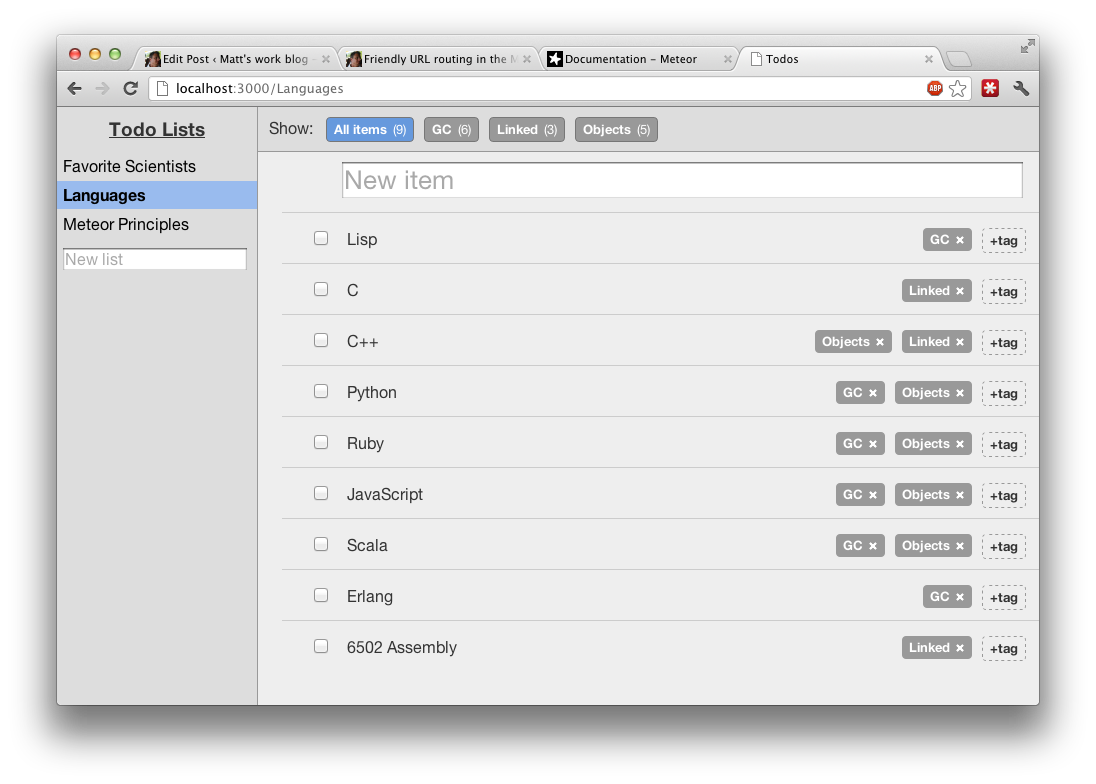
I started by looking at the leaderboard sample, and then the todos sample. At the end of the video the author lays down a challenge – to make the URLs friendly. So instead of http://localhost:3000/bbbeec7c-6749-400b-bc45-4ed744e010b7 it should be http://localhost:3000/Languages. In order to do that I needed to understand how routing works.

When you click on a todo list in the left, this code fires:

Template.lists.events = {
  'mousedown .list': function (evt) { // select list
    Router.setList(this._id);
  },

which calls:

var TodosRouter = Backbone.Router.extend({
  routes: {
    ":list_id": "main"
  },
  main: function (list_id) {
    Session.set("list_id", list_id);
    Session.set("tag_filter", null);
  },
  setList: function (list_id) {
    this.navigate(list_id, true);
  }
});

The setList function calls navigate, which is Backbone.js’s router function to save the current location in the browser’s history. The “true” parameter also tells the browser to navigate to the url, so if list_id = “1234” the browser will navigate to i.e. localhost:3000/1234.

According to the routes defined here

var TodosRouter = Backbone.Router.extend({
  routes: {
    ":list_id": "main"
  },

if I navigate to localhost:3000/1234, then “1234” will be passed to the “main” function as the “list_id” parameter. Which takes us to:

var TodosRouter = Backbone.Router.extend({
  routes: {
    ":list_id": "main"
  },
  main: function (list_id) {
    Session.set("list_id", list_id);
    Session.set("tag_filter", null);
  },
  setList: function (list_id) {
    this.navigate(list_id, true);
  }
});

OK, so the only thing that the “main” function does is set two Session variables. What effect does that have? Time to look at some html.

client/todos.html:

<template name="todos">
  {{#if any_list_selected}}
  <div id="items-view">
    <div id="new-todo-box">
      <input type="text" id="new-todo" placeholder="New item" />
    </div>
    <ul id="item-list">
      {{#each todos}}
        {{> todo_item}}
      {{/each}}
    </ul>
  </div>
  {{/if}}
</template>

That there is a Handlebars template, with name=”todos”. Interestingly, it has a “#each todos”. The data for that is retrieved by a helper function called “todos” (on the Template also called “todos”), i.e. this:

Template.todos.todos = function () {
  // Determine which todos to display in main pane,
  // selected based on list_id and tag_filter.

  var list_id = Session.get('list_id');
  if (!list_id)
    return {};

  var sel = {list_id: list_id};
  var tag_filter = Session.get('tag_filter');
  if (tag_filter)
    sel.tags = tag_filter;

  return Todos.find(sel, {sort: {timestamp: 1}});
};

This template (like all Meteor templates) reactively monitors the Session and detects that the value for Session.get(‘list_id’) has changed, so it runs again and returns the todo items to be rendered. Each todo item is then rendered by another Handlebars template called todo_item , as per the {{> todo_item}} in the html.

In summary then,

  1. Todo list link is clicked in the left pane, calls TodosRouter.setList(list_id).
  2. TodosRouter.setList navigates to ~/list_id
  3. Router.main sets Session[list_id] variable.
  4. The template helper “todos” detects Session[list_id] has changed so it re-runs.
  5. The Handlebars template named “todos” is re-rendered with the result of the “todos” template helper.

So how do we make the URLs friendly?

Now that we understand how routing works in Meteor, we can take the TodosRouter shown above and change:

  1. TodosRouter.setList(list_id) to TodosRouter.setList(list_name)
  2. TodosRouter.setList should navigate to ~/list_name
  3. Router.main can lookup the correct list_id from the list_name and set the Session[list_id] as before.

So

var TodosRouter = Backbone.Router.extend({
  routes: {
    ":list_name": "main"
  },
  main: function (list_name) {
    var list = Lists.findOne({name: list_name});
    if (list)
      Session.set("list_id", list._id);
    Session.set("tag_filter", null);
  },
  setList: function (list_name) {
    this.navigate(list_name, true);
  }
});

We also need to change all the code which calls setList():

Template.lists.events = {
  'mousedown .list': function (evt) { // select list
    Router.setList(this.name);
  },
Meteor.subscribe('lists', function () {
  if (!Session.get('list_id')) {
    var list = Lists.findOne({}, {sort: {name: 1}});
    if (list)
      Router.setList(list.name);
  }
});
Template.lists.events[ okcancel_events('#new-list') ] =
  make_okcancel_handler({
    ok: function (text, evt) {
      var id = Lists.insert({name: text});
      Router.setList(text);

Finally, for cosmetic reasons, we should change the “lists” template so that the html that’s rendered for the todo list links has the correct href attribute – so that when the user hovers over the link they see the new friendly url.

<a class="list-name {{name_class}}" href="/{{name}}">
  {{name}}
</a>


See the source code on github.

Meteor leaderboard sample exercise three

This is the third in a x part series about Meteor for beginners.

Exercise 3a: Remove a scientist from the leaderboard

This should be easy. First, let’s add a button.

<template name="leaderboard">
  
  ...

  {{#if selected_name}}
  <div class="details">
    <div class="name">{{selected_name}}</div>
    <input type="button" class="inc" value="Give 5 points" />
    <input type="button" class="delete" value="Delete" />
  </div>
  {{/if}}

  ...
</template>

And now the event to fire when the button is clicked:

  Template.leaderboard.events = {
    
    ...

    'click input.delete': function() {
      if (confirm('Are you sure you want to delete the player?')) {
        Players.remove(Session.get("selected_player"));
      }
    }

N.B. the remove() function accepts either a selector i.e. Players.remove({_id: Session.get(“selected_player”)}), or a string (which is the _id) as its first argument.

Exercise 3b: Add a new scientist to the leaderboard

Let’s add a new “addPlayer” template to the html:

<template name="addPlayer">
    <div>
        <div>Add a new player:</div>
        <span class="name">Name:</span>
        <input type="text" id="playerName" />
        <span class="score">Score:</span>
        <input type="text" id="playerScore" />
        <input type="button" class="add" value="Add player" />
    </div>
</template>

And now render it after the leaderboard template:

<body>
  <div id="outer">
    {{> leaderboard}}
    {{> addPlayer}}
  </div>
</body>

And now lets add template event code which will fire when the “Add player” button is clicked:


  Template.player.events = {
    'click': function () {
      Session.set("selected_player", this._id);
    }
  };

  Template.addPlayer.events = {
    'click input.add': function () {
      // todo - add validation
      Players.insert({name: playerName.value, score: Number(playerScore.value)});
    }
  };
}

Browse the code on Github.

Meteor leaderboard sample exercise two

This is the second in a x part series about Meteor for beginners.

Exercise 2: Add a button to randomise all players scores

First, let’s add the button to the bottom of the leaderboard template.
leaderboard.html:

<template name="leaderboard">

  ...

  <div>
      <input type="button" class="randomise" value="Randomise" />
  </div>
</template>

The meteor sample already has a formula to generate a random score which is called on startup if the database is empty. So let’s refactor that into a function so that we can reuse it.

//
var randomScore = function() {
  return Math.floor(Math.random()*10)*5;
}

// On server startup, create some players if the database is empty.
if (Meteor.is_server) {
  Meteor.startup(function () {
    if (Players.find().count() === 0) {
      var names = ["Ada Lovelace",
                   "Grace Hopper",
                   "Marie Curie",
                   "Carl Friedrich Gauss",
                   "Nikola Tesla",
                   "Claude Shannon"];
      for (var i = 0; i < names.length; i++)
        Players.insert({name: names[i], score: randomScore()});
    }
  });
}

Now all we need to do is add an event to handle the button click which will do the work:

  Template.leaderboard.events = {

    ...

    'click input.randomise': function() {
      Players.find({}).forEach(function(player) {
        Players.update(player, {$set: {score: randomScore()}});
      });
    }
  };

Browse the code at github.

Meteor leaderboard sample exercise one

This is the first in a x part series about Meteor for beginners.

Introduction

I’ve been trying to get up to speed with Meteor lately. Since I don’t have any experience with nodejs it’s been a challenge. However, Meteor’s documentation is very good so I’m getting there.

I started by looking at the leaderboard sample.

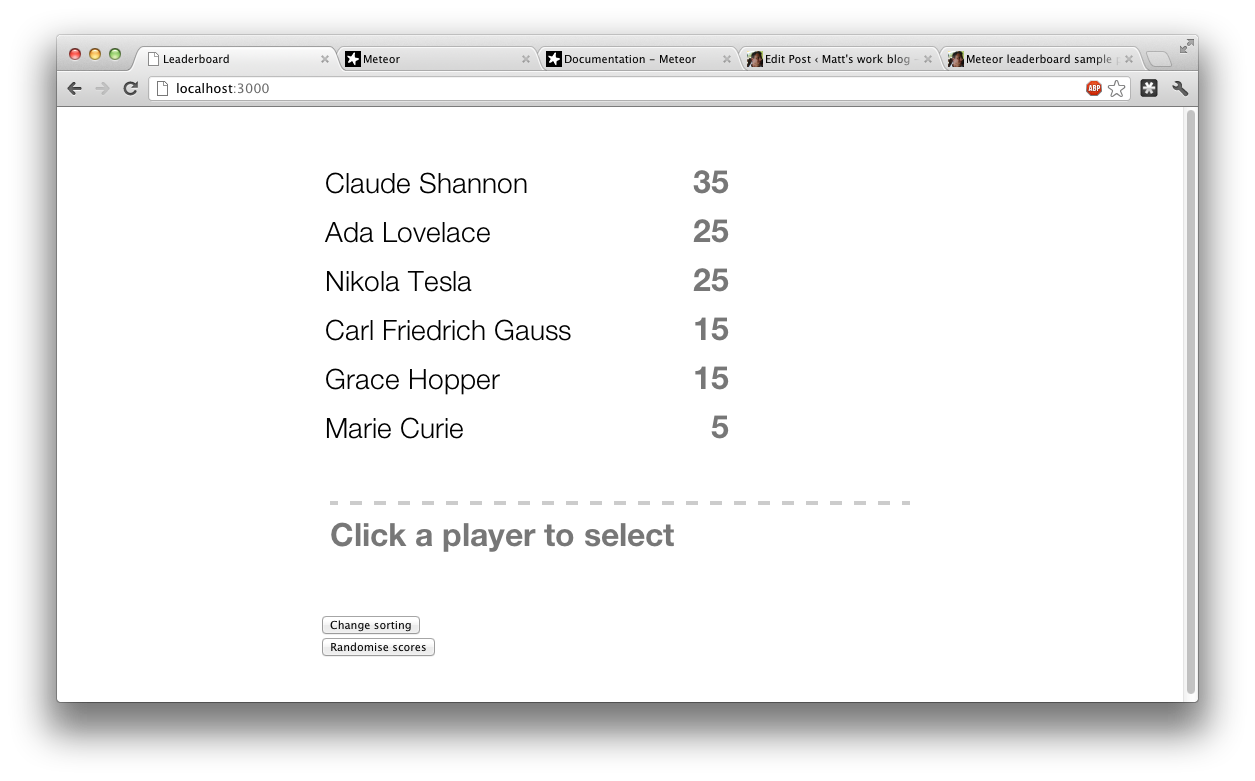
The tutorial suggests making 3 enhancements to the leaderboard sample as an exercise. Here’s my attempt at the first one.

Exercise 1: Add a button to toggle between sorting by score and by name

First let’s add a button to the bottom of the “leaderboard” template

<template name="leaderboard">
  <div class="leaderboard">
    {{#each players}}
      {{> player}}
    {{/each}}
  </div>

  {{#if selected_name}}
  <div class="details">
    <div class="name">{{selected_name}}</div>
    <input type="button" class="inc" value="Give 5 points" />
  </div>
  {{/if}}

  {{#unless selected_name}}
  <div class="none">Click a player to select</div>
  {{/unless}}

  <div>
      <input type="button" class="sort" value="Change sorting" />
  </div>
</template>

That there is a Handlebars template with name=”leaderboard”. Notice that it has a {{#each players}}. We’ll get to that in a minute.
Now let’s add javascript to toggle the sort order. We’ll need to save the sort order in the Session, so let’s set its default value at startup.

if (Meteor.is_client) {
  Meteor.startup(function() {
    Session.set("sort_order", {score: -1, name: 1});
  });

{score: -1, name: 1} means sort by score (descending) first, then name.
The {{#each players}} I mentioned earlier calls the Template.leaderboard.players() function, so let’s change that to use the sort order stored in the Session.

  Template.leaderboard.players = function () {
    return Players.find({}, {sort: Session.get("sort_order")});
  };

Now all we need to do is change the sort order stored in the Session whenever the button is clicked. So let’s add an event to the Template.leaderboard.events object which is fired when the “Change sorting” button is clicked.

  Template.leaderboard.events = {
    'click input.inc': function () {
      Players.update(Session.get("selected_player"), {$inc: {score: 5}});
    },
    'click input.sort': function() {
      var sortOrder = Session.get("sort_order");

      if (Object.keys(sortOrder)[0] == "score") { // sort by score desc
        Session.set("sort_order", { name: 1, score: -1 }); // sort by name
      }
      else {
        Session.set("sort_order", { score: -1, name: 1 }); // sort by score desc
      }
    }
  };

See the code on github.

Create a Movie Database Application with FubuMVC

I decided to have a look at FubuMVC, mainly to see what it offers over ASP.NET MVC. To do so I tasked myself with creating a simple Movies app, ala Stephen Walter’s Movie Database ASP.NET MVC tutorial.

So the requirements of the application are:

  1. List a set of movie database records
  2. Create a new movie database record (with validation!)
  3. Edit an existing movie database record

Quick, show me the code

You can download the source code from bitbucket.

The finished application is running here on AppHarbor. Click on the Title of a Movie to edit it – NB. the first 3 sample movies are read-only.

Let’s get started

In Visual Studio, File -> New Project -> Web -> ASP.NET Empty Web Application. Name it MovieApp.

Next, add FubuMVC via nuget (right-click MovieApp project, Manage NuGet packages, and search for FubuMVC).

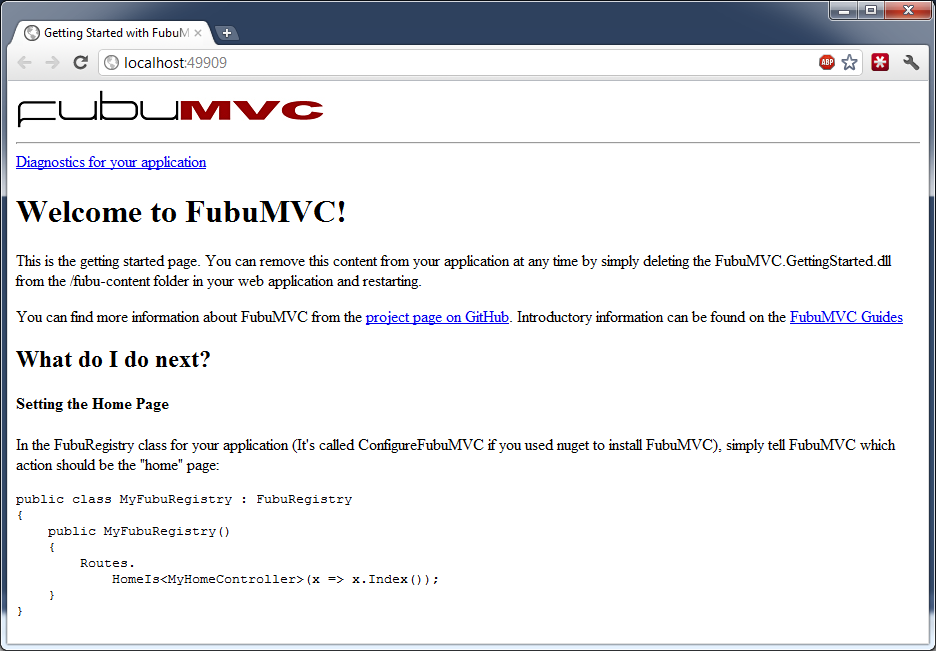
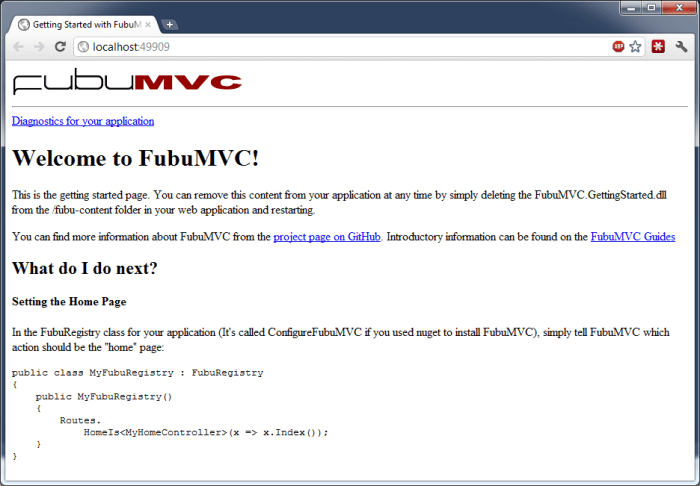
Press F5 to check you get the FubuMVC welcome page.
Create the database

As per Stephen’s tutorial, I’m going to use SQL Server and Entity Framework for the data layer.

See his tutorial for instructions on how to set that up using Visual Studio. If you have SQL Server Management Studio then create a new database called MoviesDB, and run the following script to create a table.

CREATE TABLE [dbo].[Movies](
 [Id] [int] IDENTITY(1,1) NOT NULL,
 [Title] [nvarchar](255) NOT NULL,
 [Director] [nvarchar](255) NOT NULL,
 [DateReleased] [datetime] NOT NULL,
 [Synopsis] [ntext] NOT NULL,
 [ImageUri] [nvarchar](255) NOT NULL,
 CONSTRAINT [PK_Movies] PRIMARY KEY CLUSTERED
(
 [Id] ASC
)WITH (PAD_INDEX = OFF, STATISTICS_NORECOMPUTE = OFF, IGNORE_DUP_KEY = OFF, ALLOW_ROW_LOCKS = ON, ALLOW_PAGE_LOCKS = ON) ON [PRIMARY]
) ON [PRIMARY] TEXTIMAGE_ON [PRIMARY]
GO
SET IDENTITY_INSERT [dbo].[Movies] ON
INSERT [dbo].[Movies] ([Id], [Title], [Director], [DateReleased], [Synopsis], [ImageUri]) VALUES (1, N'Star Wars', N'George Lucas', CAST(0x00006DDC00000000 AS DateTime), N'Part IV in George Lucas'' epic, Star Wars: A New Hope opens with a Rebel ship being boarded by the tyrannical Darth Vader. The plot then follows the life of a simple farm boy, Luke Skywalker, as he and his newly met allies (Han Solo, Chewbacca, Obi-Wan Kenobi, C-3PO, R2-D2) attempt to rescue a Rebel leader, Princess Leia, from the clutches of the Empire. The conclusion is culminated as the Rebels, including Skywalker and flying ace Wedge Antilles make an attack on the Empire''s most powerful and ominous weapon, the Death Star.', N'http://ia.media-imdb.com/images/M/MV5BMTU4NTczODkwM15BMl5BanBnXkFtZTcwMzEyMTIyMw@@._V1._SY317_.jpg')
INSERT [dbo].[Movies] ([Id], [Title], [Director], [DateReleased], [Synopsis], [ImageUri]) VALUES (2, N'Pulp Fiction', N'Quentin Tarantino', CAST(0x0000861D00000000 AS DateTime), N'Jules Winnfield and Vincent Vega are two hitmen who are out to retrieve a suitcase stolen from their employer, mob boss Marsellus Wallace. Wallace has also asked Vincent to take his wife Mia out a few days later when Wallace himself will be out of town. Butch Coolidge is an aging boxer who is paid by Wallace to lose his next fight. The lives of these seemingly unrelated people are woven together comprising of a series of funny, bizarre and uncalled-for incidents', N'http://ia.media-imdb.com/images/M/MV5BMjE0ODk2NjczOV5BMl5BanBnXkFtZTYwNDQ0NDg4._V1._SY317_CR4,0,214,317_.jpg')
INSERT [dbo].[Movies] ([Id], [Title], [Director], [DateReleased], [Synopsis], [ImageUri]) VALUES (3, N'Memento', N'Christopher Nolan', CAST(0x00008FD100000000 AS DateTime), N'Memento chronicles two separate stories of Leonard, an ex-insurance investigator who can no longer build new memories, as he attempts to find the murderer of his wife, which is the last thing he remembers. One story line moves forward in time while the other tells the story backwards revealing more each time.', N'http://ia.media-imdb.com/images/M/MV5BMjA3MTkzMzI3N15BMl5BanBnXkFtZTcwNzYwMzQ4MQ@@._V1._SY317_.jpg')
SET IDENTITY_INSERT [dbo].[Movies] OFF

I’ve added a couple of extra columns – ImageUri and Synopsis.

Create the Model

Back in Visual Studio, right-click on MovieApp and choose Add -> New Folder, and name it ‘Model’.

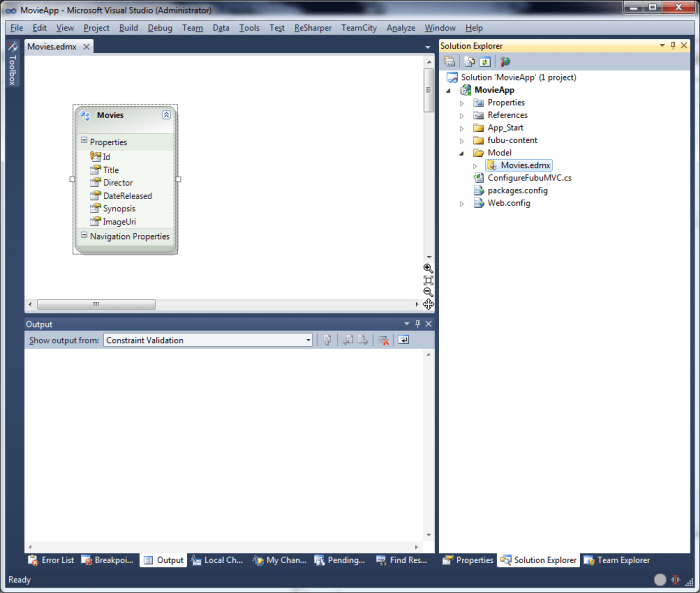
Right-click the Model folder, and choose Add -> New Item…, then Data -> ADO.NET Entity Data Model. Name it Movies.edmx. Select Generate from database, click Next. Choose the MoviesDB you just created, and click Next. Tick the Tables checkbox, and click Finish. Now click on the entity ‘Movy’. Open the Properties pane, and change its name to ‘Movie’ and the Entity Set Name to ‘Movies’.

With me so far? We should have something like this:
Create the FubuMVC Controller

FubuMVC isn’t as strict about what makes a controller as ASP.NET MVC. In fact, that is one of fubu’s big features – you can define your own conventions about what make a Controller (or a Handler in fubu-parlance). But in the interests of keeping this tutorial simple, I’m going to stick to the ‘ClassesSuffixedWithController’ convention.

Right-click MovieApp, Add -> New Folder, named ‘Movies’.
Right-click Movies folder, Add -> Class, named IndexController.cs:

using System.Collections.Generic;
using System.Linq;
using MovieApp.Model;

namespace MovieApp.Movies
{
    public class IndexController
    {
        private MoviesDBEntities _db = new MoviesDBEntities();

        public ViewModel Index(InputModel model)
        {
            return new ViewModel { Movies = _db.Movies.ToList() };
        }

        public class InputModel
        {
        }

        public class ViewModel
        {
            public IEnumerable<Movie> Movies { get; set; }
        }
    }
}

Because of the namespace (MoviesApp.Movies) and the name of the Action (public ViewModel Index(InputModel model)), the Index method is going to get hit when we navigate to /Movies/Index.

One of the best practices of FubuMVC is the OMIOMO rule – One Model In, One Model Out. This means every controller Action should have one unique model passed to it, and should return a different model.

My preference is to keep these Model classes nested in the Controller class to reduce namespace clutter, but you don’t have to.

So you can see that the Index method takes an instance of IndexController.Index, and returns an instance of IndexController.ViewModel.

Add a ViewEngine

FubuMVC supports the Spark view engine, the Web Forms view engine, and as of writing the Razor view engine is a work in progress.
I didn’t feel like learning Spark, and since Razor isn’t finished yet, I’ll use the Web Forms view engine (ala ASP.NET MVC1), which means .aspx files with a code-behind .aspx.cs – sorry about that.

Add the FubuMVC.WebForms NuGet package.

Now open /ConfigureFubuMVC.cs, and add the following lines:

public ConfigureFubuMVC()
{
    ....
    // View Engine
    Import<WebFormsEngine>();
}

Add the ‘Index’ View

Now right-click the Movies folder, Add -> New Item. Choose Web Form, and name it Index.aspx.
Delete the Index.aspx.designer.cs – we don’t need it.
Open the Index.aspx.cs, delete the existing code and replace it with this:

using FubuMVC.WebForms;
namespace MovieApp.Movies
{
    public partial class Index : FubuPage<IndexController.ViewModel>
    {
    }
}

This tells Index.aspx that its Model is an IndexController.ViewModel.
Now open Index.aspx, and replace it with this:

<%@ Page Language="C#" AutoEventWireup="true" CodeBehind="Index.aspx.cs" Inherits="MovieApp.Movies.Index" %>
<html xmlns="http://www.w3.org/1999/xhtml">
<head id="Head1" runat="server">
    <title>All Movies</title>
</head>
<body>
    <% foreach (var movie in Model.Movies)
       { %>
            <h3><%: movie.Title %></h3>
            <b>Director:</b> <%: movie.Director %><br />
            <b>Date released:</b> <%: movie.DateReleased.ToString("MMM yyyy") %><br />
            <%: movie.Synopsis %><br />
    <% } %>
</body>
</html>

Notice that in the view we can use the ‘Model’ keyword just like in ASP.NET MVC.
Now press Ctrl-F5, and navigate to /movies/index, and you should see:

Remember, our Action is /Movies/Index because of the Controller’s namespace (MovieApp.Movies) + the name of the Action method (public ViewModel Index(InputModel model)). The Webforms view engine will look for a corresponding View in the same path – ~/Movies/, which has the same underlying Model type as the one returned by the Index action method – “IndexController.ViewModel”. Our Index.aspx.cs sets this (public partial class Index : FubuPage<IndexController.ViewModel>).

Add an Edit Movie page

Another FubuMVC recommendation is to have a separate Controller/Handler per action.
So let’s Right click the Movies folder, Add -> Class, and name it EditController.cs:

using System.Linq;
using FubuMVC.Core.Continuations;
using MovieApp.Model;

namespace MovieApp.Movies
{
    public class EditController
    {
        private MoviesDBEntities _db = new MoviesDBEntities();

        public Movie Get_Movies_Edit_MovieId(InputModel input)
        {
            return _db.Movies.FirstOrDefault(x => x.Id == input.MovieId);
        }

        public FubuContinuation Post_Movies_Edit(Movie input)
        {
            var movie = _db.Movies.First(m => m.Id == input.Id);
            movie.Title = input.Title;
            movie.Director = input.Director;
            movie.DateReleased = input.DateReleased;
            movie.Synopsis = input.Synopsis;

            _db.SaveChanges();
            return FubuContinuation.RedirectTo(new IndexController.InputModel());
        }

        public class InputModel
        {
            public int MovieId { get; set; }
        }
    }
}

This time, the name of the Action (Get_Movies_Edit_MovieId) follows another one of Fubu’s built-in conventions – underscores are replaced by /. So this Action will get hit when you navigate to /Movies/Edit/1. The Get at the front means we are restricting to HTTP GETs only.

Now let’s add the view.
Add a new Web Form as before, call it Edit.aspx. Edit.aspx.cs:

using FubuMVC.WebForms;
using MovieApp.Model;

namespace MovieApp.Movies
{
    public partial class Edit : FubuPage<Movie>
    {
    }
}

Edit.aspx:

<%@ Page Language="C#" AutoEventWireup="true" CodeBehind="Edit.aspx.cs" Inherits="MovieApp.Movies.Edit" %>
<%@ Import Namespace="MovieApp.Movies" %>

<html xmlns="http://www.w3.org/1999/xhtml">
<head runat="server">
    <title>Edit Movie</title>
</head>
<body>
<% if (Model != null)
   { %>
    <%= this.FormFor(Model) %>
        <input type="hidden" name="Id" value="<%= Model.Id %>" />
        <fieldset>
            <legend>Edit Movie</legend>
            <p>
                <%= this.LabelFor(m => m.Title) %><%= this.InputFor(m => m.Title) %>
            </p>
            <p>
                <%= this.LabelFor(m => m.Director) %><%= this.InputFor(m => m.Director) %>
            </p>
            <p>
                <%= this.LabelFor(m => m.DateReleased) %><input type="text" name="DateReleased" value="<%: Model.DateReleased.ToShortDateString() %>" />
            </p>
            <p>
                <%= this.LabelFor(m => m.ImageUri) %><%= this.InputFor(m => m.ImageUri) %>
            </p>
            <p>
                <%= this.LabelFor(m => m.Synopsis) %><textarea name="Synopsis" rows="15" cols="70"><%: Model.Synopsis %></textarea>
            </p>
        </fieldset>
        <input type="submit" value="Save" />
        <%= this.LinkTo(new IndexController.InputModel()).Text("Cancel") %>
    <%= this.EndForm() %>
<% } %>
</body>
</html>

Notice that this time we’re using some of FubuMVC’s built-in HtmlTag helpers – this.FormFor(), this.LabelFor(), this.InputFor() etc.
One thing I like is the

<%= this.FormFor(Model) %>

This renders to:

   <form id="mainForm" method="post" action="/movies/edit">

Fubu is smart enough to put action=”/movies/edit” on the form – because FormFor(Model) is saying give me a form for the Model, and it knows the Model of type Movie, so it looks for any Action that takes a Movie as input. The Action it wants is defined in the EditController (public FubuContinuation Post_Movies_Edit(Movie input)) but it’s important to note that this Action could be anywhere and could be named anything. For example, if I rename the Post_Movies_Edit() method to “DumDeeDoo()”, then FormFor renders the form with

<form id="mainForm" method="post" action="/movies/dumdeedoo">

Note that the name of the Post method is following the same convention as the Get – Post_Movies_Edit exists at /Movies/Edit and will accept HTTP POSTs only. It returns a FubuContinuation which redirects us back to the Home page (/Movies/Index).

Now let’s look at the Cancel link at the bottom.

<%= this.LinkTo(new IndexController.InputModel()).Text("Cancel") %>

Renders to:

<a href="/movies/index">Cancel</a>

As with the FormFor, with “LinkTo” I ask for a link to an InputModel. This differs from the ASP.NET MVC approach of asking for an Html.ActionLink to a specific Action method. Fubu’s way is pretty cool – cos if I rename my actions or restructure the site, the links will still render the correct URLs.

Add Validation

Unfortunately validation isn’t included in the box, but we can add it. But it’s a pain in the ass.
First add the FubuMVC.Validation NuGet package.
Next change your /App_Start/FubuMVC.cs

using Bottles;
using FubuMVC.Core;
using FubuMVC.StructureMap;
using FubuValidation.StructureMap;
using StructureMap.Configuration.DSL;

// You can remove the reference to WebActivator by calling the Start() method from your Global.asax Application_Start
[assembly: WebActivator.PreApplicationStartMethod(typeof(MovieApp.App_Start.AppStartFubuMVC), "Start", callAfterGlobalAppStart: true)]

namespace MovieApp.App_Start
{
    public static class AppStartFubuMVC
    {
        public static void Start()
        {
            // FubuApplication "guides" the bootstrapping of the FubuMVC
            // application
            FubuApplication.For<ConfigureFubuMVC>() // ConfigureFubuMVC is the main FubuRegistry
                                                    // for this application.  FubuRegistry classes
                                                    // are used to register conventions, policies,
                                                    // and various other parts of a FubuMVC application

                // FubuMVC requires an IoC container for its own internals.
                .StructureMapObjectFactory(configure => configure.AddRegistry<MovieAppRegistry>())
                .Bootstrap();

			// Ensure that no errors occurred during bootstrapping
			PackageRegistry.AssertNoFailures();
        }

        public class MovieAppRegistry : Registry
        {
            public MovieAppRegistry()
            {
                Scan(x =>
                {
                    x.TheCallingAssembly();
                    x.WithDefaultConventions();
                });

                this.FubuValidation();
            }
        }
    }
}

Now add these lines to /ConfigureFubuMVC.cs

public ConfigureFubuMVC()
{
    ...
    Views.TryToAttachWithDefaultConventions()
                .RegisterActionLessViews(t => t.ViewModelType == typeof(FubuValidation.Notification));

    this.Validation(validation => {
        // Include all action calls that: 1) have input and 2) whose input models contain the string "ViewModel"
        validation
            .Actions
            .Include(call => call.HasInput && call.InputType().Name.Contains("ViewModel"));

        // This DSL reads as follows...
        // When handling failures:
        //  If the input type of the action call is not null and the name of the model contains the string "ViewModel",
        //  Then Transfer to a behavior chain that is resolved by my custom HandlerModelDescriptor class
        validation
            .Failures
            .If(f => f.InputType() != null && f.InputType().Name.Contains("ViewModel"))
            .TransferBy<HandlerModelDescriptor>();
    });
}

The above is saying that we’re adding validation to any method that takes an input, and has “ViewModel” in its name.
The method it will redirect to if validation fails is determined by the HandlerModelDescriptor class, which we will now add.

/HandlerModelDescriptor.cs

using System;
using System.Linq;
using FubuMVC.Core.Registration;
using FubuMVC.Validation;

namespace MovieApp
{
    public class HandlerModelDescriptor : IFubuContinuationModelDescriptor
    {
        private readonly BehaviorGraph _graph;

        public HandlerModelDescriptor(BehaviorGraph graph)
        {
            _graph = graph;
        }

        public Type DescribeModelFor(ValidationFailure context)
        {
            // Remember, behavior chains can be identified by the input model type
            // The IFubuContinuationModelDescriptor interface is used to describe the input model type of the chain
            // that we want to transfer to

            // we're going to query the BehaviorGraph to find the corresponding GET for the POST
            // obviously, we'd need to make this smarter but this is just a simple example
            var targetName = context.Target.HandlerType.Name;
            var getCall = _graph
                .Behaviors
                .Where(chain => chain.FirstCall() != null && chain.FirstCall().HandlerType.Name == targetName
                    && chain.Route.AllowedHttpMethods.Contains("GET"))
                .Select(chain => chain.FirstCall())
                .FirstOrDefault();

            if(getCall == null)
            {
                return null;
            }

            return getCall.InputType();
        }
    }
}

This is called when validation fails. It returns the Input Type of the method to pass control to.
To find it, it looks for an HTTP GET method inside the same Controller as the method doing the POSTing.

Now we need to add a View which is called when validation is needed.
Add a new folder, /Shared.
/Shared/ValidationSummary.aspx

<%@ Page Language="C#" AutoEventWireup="true" CodeBehind="ValidationSummary.aspx.cs" Inherits="MovieApp.Shared.ValidationSummary" %>

<% if (Model.AllMessages.Any()) { %>
    <ul style="color:Red">
        <% foreach (var msg in Model.AllMessages)
           { %>
                <li><%= msg %></li>
        <% } %>
    </ul>
<% } %>

/Shared/ValidationSummary.aspx.cs

using FubuMVC.WebForms;
namespace MovieApp.Shared
{
    public partial class ValidationSummary : FubuPage <FubuValidation.Notification>
    {
    }
}

Add a Create Movie page (with validation)

/Movies/CreateController.cs

using System;
using FubuMVC.Core.Continuations;
using FubuValidation;
using MovieApp.Model;

namespace MovieApp.Movies
{
    public class CreateController
    {
        private MoviesDBEntities _db = new MoviesDBEntities();

        public ViewModel Get_Movies_Create(InputModel input)
        {
            return new ViewModel { DateReleased = DateTime.Parse("01/01/2001") };
        }

        public FubuContinuation Post_Movies_Create(ViewModel input)
        {
            var movie = new Movie
            {
                Title = input.Title,
                Director = input.Director,
                DateReleased = input.DateReleased,
                ImageUri = input.ImageUri,
                Synopsis = input.Synopsis
            };

            _db.Movies.AddObject(movie);
            _db.SaveChanges();

            return FubuContinuation.RedirectTo(new IndexController.InputModel());
        }

        public class InputModel
        {
        }

        public class ViewModel
        {
            [Required]
            public string Title { get; set; }
            [Required]
            [MaximumStringLength(50)]
            public string Director { get; set; }
            [Required]
            public DateTime DateReleased { get; set; }
            [Required]
            public string ImageUri { get; set; }
            [Required]
            public string Synopsis { get; set; }
        }
    }
}

I’ve taken a best practice approach with the Create – by binding to a view model (ViewModel), instead of binding directly to the Movie domain object. This also allows me to add FubuValidation attributes like [Required].

/Movies/Create.aspx

<%@ Page Language="C#" AutoEventWireup="true" CodeBehind="Create.aspx.cs" Inherits="MovieApp.Movies.Create" %>
<%@ Import Namespace="MovieApp.Movies" %>

<html xmlns="http://www.w3.org/1999/xhtml">
<head runat="server">
    <title>Create Movie</title>
</head>
<body>
    <%= this.FormFor(Model) %>
        <fieldset>
            <legend>Create Movie</legend>
            <%= this.Partial<FubuValidation.Notification>() %>
            <p>
                <%= this.LabelFor(m => m.Title) %><%= this.InputFor(m => m.Title) %>
            </p>
            <p>
                <%= this.LabelFor(m => m.Director) %><%= this.InputFor(m => m.Director) %>
            </p>
            <p>
                <%= this.LabelFor(m => m.DateReleased) %><input type="text" name="DateReleased" value="<%: Model.DateReleased.ToShortDateString() %>" />
            </p>
            <p>
                <%= this.LabelFor(m => m.ImageUri) %><%= this.InputFor(m => m.ImageUri) %>
            </p>
            <p>
                <%= this.LabelFor(m => m.Synopsis) %><textarea name="Synopsis" rows="15" cols="70"><%: Model.Synopsis %></textarea>
            </p>
        </fieldset>
        <input type="submit" value="Save" /> <%= this.LinkTo(new IndexController.InputModel()).Text("Cancel") %>
    <%= this.EndForm() %>
</body>
</html>

/Movies/Create.aspx.cs

using FubuMVC.WebForms;
namespace MovieApp.Movies
{
    public partial class Create : FubuPage<CreateController.ViewModel>
    {
    }
}

If all works correctly, you should be able to navigate to /Movies/Create, and see the following:
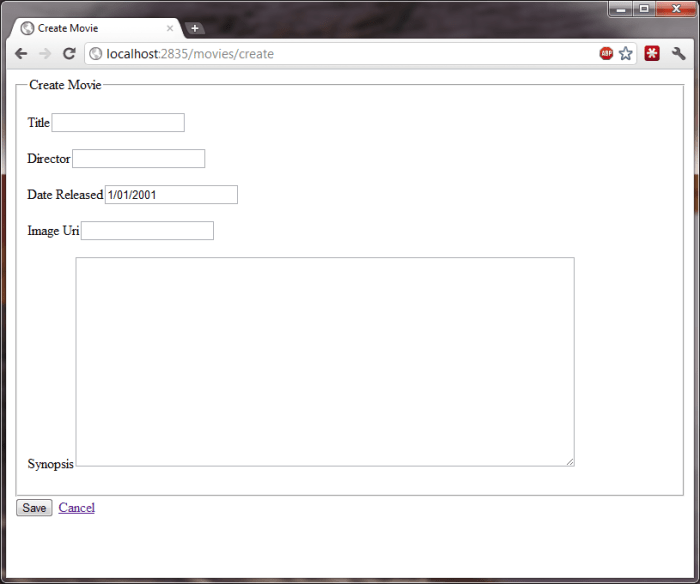
and then if we don’t enter a Required field, we get the Validation summary at the top:
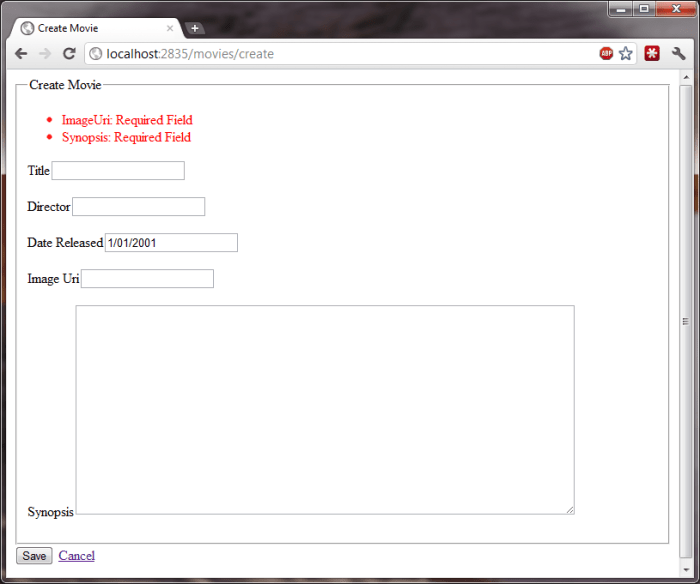
Unfortunately that’s all you get for validation – no message alongside the invalid field. And the values which the user previously entered aren’t persisted, which is annoying.

Finishing touches

I’ll add a quick skin using one of the great templates at freecsstemplates.org. I’ll also add a link to the Create, and Edit pages, and also a Delete Movie button.
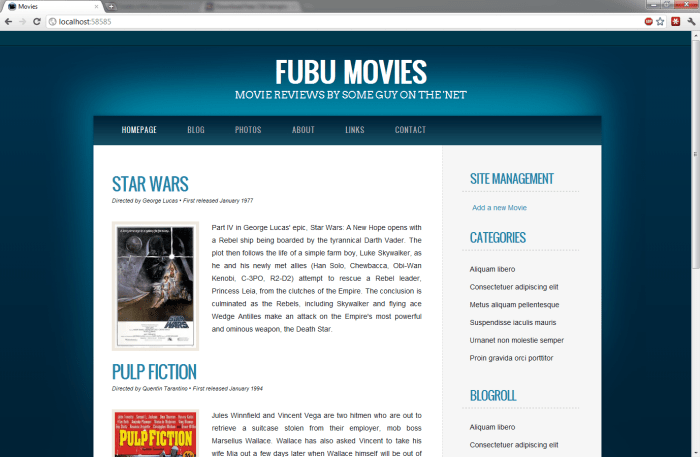
You can see the sample application running here on AppHarbor. Click on the Title of a Movie to edit it – NB. the first 3 sample movies are read-only.

You can download the source code from bitbucket.

jsTree tri-state checkboxes with ASP.NET MVC revisited

My original jsTree checkboxes post is still my most popluar, yet it is 18 months old and no longer works with the latest version of jsTree (pre 1.0). Since that post is so popular I thought I should update it.

My first surprise was how much the jsTree guys changed their API between releases – I was only going from version 0.9.9 to version 1.0, but  I had to practically start from scratch.

So, without further ado:

jsTree is a jQuery plugin for creating a treeviews, and jsTree’s checkbox plugin allows you to create a treeview with tri-state checkboxes, like so:

Notice how “Origination” appears half-checked because only some of its children are checked.

Getting started

For this demo I am using ASP.NET MVC 3 and jsTree pre 1.0 fixed. Let’s start with a new “ASP.NET MVC 3 Web Application”, choose Internet Application, name it jsTreeDemo, and add the required jsTree files to our solution:

In the View, create a div which you want to become a treeview. I’ll name mine demoTree. Also add references to the jsTree script, and add a new index.js file for our custom javascript.

Views/Home/Index.cshtml

@{
 ViewBag.Title = "Home Page";
}

<h2>@ViewBag.Message</h2>

<div id="demoTree">

</div>

treeModel = [{"data":"Confirm Application","attr":{"id":"10"},"children":null},{"data":"Things","attr":{"id":"20"},"children":[{"data":"Thing 1","attr":{"id":"21"},"children":null},{"data":"Thing 2","attr":{"id":"22"},"children":null},{"data":"Thing 3","attr":{"id":"23"},"children":null},{"data":"Thing 4","attr":{"id":"24"},"children":[{"data":"Thing 4.1","attr":{"id":"241"},"children":null},{"data":"Thing 4.2","attr":{"id":"242"},"children":null},{"data":"Thing 4.3","attr":{"id":"243"},"children":null}]}]},{"data":"Colors","attr":{"id":"40"},"children":[{"data":"Red","attr":{"id":"41"},"children":null},{"data":"Green","attr":{"id":"42"},"children":null},{"data":"Blue","attr":{"id":"43"},"children":null},{"data":"Yellow","attr":{"id":"44"},"children":null}]}];


Scripts/index.js

/// 

$(function () {
   $("#demoTree").jstree({
      json_data : {
         data : treeModel
      },
      plugins : ["themes", "json_data", "ui", "checkbox"]
 });
});

Briefly, jstree has a number of ways of poplulating the tree with data – in my previous jsTree post I was populating the tree via AJAX but for now the tree is populated via hardcoded JSON (using the built-in "json_data" plugin). Don’t forget to specify the "checkbox" plugin too.

Populate the tree from a viewmodel

Just like last time, let’s create a viewmodel for creating the tree structure.

Models/JsTreeModel.cs

namespace jsTreeDemo.Models
{
  public class JsTreeModel
  {
    public string data;
    public JsTreeAttribute attr;
    public JsTreeModel[] children;
  }
  
  public class JsTreeAttribute
  {
    public string id;
    public bool selected;
  }
}

Now let’s change our controller to create a viewmodel, serialize it to JSON, and pass that string to our View.
Controllers/HomeController.cs

public ActionResult Index()
{
    ViewBag.Message = "Welcome!";
            
    var model = GetTreeData();
            
    string jsonModel = new JavaScriptSerializer().Serialize(model);
            
    return View("Index", "_Layout", jsonModel);
}

private JsTreeModel[] GetTreeData()
{
var tree = new JsTreeModel[] 
{
    new JsTreeModel { data = "Confirm Application", attr = new JsTreeAttribute { id = "10", selected = true } },
    new JsTreeModel 
    { 
        data = "Things",
        attr = new JsTreeAttribute { id = "20" },
        children = new JsTreeModel[]
            {
                new JsTreeModel { data = "Thing 1", attr = new JsTreeAttribute { id = "21", selected = true } },
                new JsTreeModel { data = "Thing 2", attr = new JsTreeAttribute { id = "22" } },
                new JsTreeModel { data = "Thing 3", attr = new JsTreeAttribute { id = "23" } },
                new JsTreeModel 
                { 
                    data = "Thing 4", 
                    attr = new JsTreeAttribute { id = "24" },
                    children = new JsTreeModel[] 
                    { 
                        new JsTreeModel { data = "Thing 4.1", attr = new JsTreeAttribute { id = "241" } }, 
                        new JsTreeModel { data = "Thing 4.2", attr = new JsTreeAttribute { id = "242" } }, 
                        new JsTreeModel { data = "Thing 4.3", attr = new JsTreeAttribute { id = "243" } }
                    },
                },
            }
    },
    new JsTreeModel 
    {
        data = "Colors",
        attr = new JsTreeAttribute { id = "40" },
        children = new JsTreeModel[]
            {
                new JsTreeModel { data = "Red", attr = new JsTreeAttribute { id = "41" } },
                new JsTreeModel { data = "Green", attr = new JsTreeAttribute { id = "42" } },
                new JsTreeModel { data = "Blue", attr = new JsTreeAttribute { id = "43" } },
                new JsTreeModel { data = "Yellow", attr = new JsTreeAttribute { id = "44" } },
            }
    }
};

return tree;
}

Views/Index.cshtml

@model string
       
@{
    ViewBag.Title = "Home Page";
}

...


    treeModel = @Html.Raw(Model);

Determining which items are checked when posting

Let’s put our tree inside a <form> and submit it.
Views/Index.cshtml

...
@using (Html.BeginForm("Results", "Home", FormMethod.Post))
{ 
    <div id="demoTree">
    </div>
    <br />
    <div>
        
    </div>
} 
...

And now let’s add the Results method to the HomeController

Controllers/HomeController.cs

[HttpPost]
public ActionResult Results(FormCollection form)
{
    return View(form);
}

and the View

Views/Home/Results.cshtml

@model FormCollection

@{
    ViewBag.Title = "Results";
}

<h2>Results</h2>
<p>
    You chose:
    @foreach (var item in Model.AllKeys)
    {
        @Model[item]@: 
    } 
</p>

<p>
    @Html.ActionLink("Home", "Index")
</p>

If you press the Submit button, nothing will happen as nothing is passed through in the FormCollection to Results() in HomeController. Despite appearances, jsTree doesn’t by default render any HTML <input>s for the checkboxes. But it’s easy enough to tell it to render them using the real_checkboxes flag:

Scripts/index.js

$(function () {
    $("#demoTree").jstree({
        json_data: {
            data: treeModel
        },
        checkbox: {
            real_checkboxes: true,
            real_checkboxes_names: function (n) {
                return [("check_" + (n[0].id || Math.ceil(Math.random() * 10000))), n[0].id]
            }
        },
        plugins: ["themes", "json_data", "ui", "checkbox"]
    });
});

Now when we submit our form, we should see the ids of the values which were checked:

What about telling the tree to pre-check some items?

So how do we render the tree with some items already checked? Notice how we added “public bool selected” to JsTreeAttribute? This doesn’t do anything as far as the checkboxes are concerned, but it does add a custom property called “selected” to each node’s <li>. We can use that to tell the jsTree to check the given node, by binding to the ‘loaded.jstree’ event.

Scripts/index.js

$(function () {
    $("#demoTree").jstree({
        json_data: {
            data: treeModel
        },
        checkbox: {
            real_checkboxes: true,
            real_checkboxes_names: function (n) {
                return [("check_" + (n[0].id || Math.ceil(Math.random() * 10000))), n[0].id]
            }
        },
        plugins: ["themes", "json_data", "ui", "checkbox"]
    }).bind("loaded.jstree", function (event, data) {
        $('#demoTree').jstree('check_node', 'li[selected=selected]');
    });
});

You’ll see that the nodes that are marked with selected=true in GetTreeData() are now pre-checked when you first load the page.

Here’s a link to the solution (VS 2010).