Should I cycle: designing my API

Once I had determined I was going to use London Air API and OpenWeatherMap’s API it made it easy to design my own API.

I find that documenting this process is essential as otherwise I would forget the decisions I’d made during planning and investigation when it came time to actually write the code.

Should I Cycle API

Document version

Date Version Author Comments
25 August 2014 0.1 Matt Frear Initial version

Cycle endpoint

GET

/v1/cycle?location=London,uk&airquality=wa7,wa9

Arguments

Name Type Required Description
location string 1 The location for weather results.

e.g. London,uk

We will call OpenWeatherMap’s forecast service with this info http://api.openweathermap.org/data/2.5/forecast?
q=London,uk&units=metric

airquality string 0..n A site code to check for pollution.

This parameter can be passed as a comma-separated list to check multiple sites, e.g.

/v1/cycle?location=london&airquality=wa7,wa6
We will call London Air’s API for each location.

A list of available locations is at:

http://api.erg.kcl.ac.uk/AirQuality/Information/Monito
ringSites/GroupName=London/Json
e.g. Putney’s is WA7.

We will call:

http://api.erg.kcl.ac.uk/AirQuality/Hourly/
MonitoringIndex/SiteCode=WA7/Json

Response

The response format will be JSON.

Name Type Description
city string The name of the City
temp int Temperature in degrees Celcius
symbol int OpenWeatherMap’s symbol for the current condition
windDegree int The wind direction in degrees from 0 to 359
windDirection string The 3 digit code for the wind direction, e.g. ENE
windSpeed int The wind speed in m/s
windStrength string A text description for the wind speed, e.g. “Moderate breeze”
pollution [] An array of pollution readings for each sensor requested

A pollution reading looks like

Name Type Description
name string The Sitecode requested, e.g. WA7
speciesCode string The type of reading, e.g. NO2
airQualityIndex int The level of pollution, where 1 = low and 10 = high

The API document is hosted in Google Docs over here: Should I Cycle API.

Should I cycle: choosing APIs

Since I’m going to have to build an API for my app before I write any code I’m going to think about what my API should look like.

To do this I’m going to do some investigation of what APIs are out there which my API will call.

For air quality I found the London Air API. It looks pretty good, easy to use with good documentation. I can get the current air quality for Putney by calling: http://api.erg.kcl.ac.uk/AirQuality/Hourly/MonitoringIndex/SiteCode=WA7/Json

Which Weather API to use?

Yahoo

Choosing a weather API was more difficult. I was originally going to use Yahoo’s weather API, I can get London’s weather like so: http://weather.yahooapis.com/forecastrss?w=44418&u=c

But I couldn’t see any “chance of rain in the next hour” metric in the results. Which is annoying, because Yahoo’s own iOS weather app has that information nicely presented. Using Charles proxy I could see that Yahoo’s iOS app uses https://mobileweather.yql.yahooapis.com and not their own public weather API. Its query for London looks like “select * from yahoo.media.weather.oauth where flickrGroup=’1463451@N25′ AND hourly=’TRUE’ AND hours=’23’ AND days=’10’ AND pw=’1316′ AND ph=’1316′ AND uv=’TRUE’ AND unit=’C’ AND mp=’true’ AND lang=’en’ AND woeid in (44418)”

Anyway, without the “chance of rain in next hour” metric I started looking elsewhere.

Forecast.io

I took a look at Forecast.io’s API and their API looked great – easy to use and it has the hourly forecast which is what I want. But when I tested its results for London a couple of things bothered me. 1. it’s in imperial only, not metric. OK that’s not a showstopper, I can do conversions to metric in my API. But the wind direction was plain incorrect. The weather was blowing an easterly but their API was saying it’s a southerly. Bad data = showstopper.

OpenWeatherMap

I had a quick look at OpenWeatherMap’s API and their API has super easy documentation (London current conditions here and 3 hour forecast here) but I couldn’t see hourly data there either.

Met Office

The UK’s own Met Office has numerous APIs over at http://www.metoffice.gov.uk/datapoint.

But bloody hell, it’s hard work trying to figure out which API call to use and how to call it. The “UK daily site specific forecast” was one option – here’s its results for Wandsworth. But that only has the forecast conditions at noon and midnight. All I want to know is what the conditions are now. Where’s that? Ah let’s try the “UK 3-hourly site-specific forecast” (Wandsworth here). Again, it’s 3 hour forecast feed. All I want to know is the conditions right now and for the next hour. I guess that’s as close as I’m going to get though.

Conclusion

I couldn’t find the perfect weather API – only Forecast.IO had a rain prediction for the next hour but their wind direction was incorrect. OpenWeatherMap and Met Office both had 3 hour predictions, but OpenWeatherMap’s documentation is better, their Free account has better terms, and they work worldwide and not UK only so I’m gonna use them.

Winner: OpenWeatherMap


Should I cycle: System design

I spent some time on the weekend thinking about Should I Cycle, the app I want to build. There’s two ways I could do it:

  • standalone iPhone app

or

  • build an API
  • iPhone app will call the API

Given the terms of use of most of the weather APIs out there, I wouldn’t be able to call them directly from my iPhone app. So I should build my own API which the iPhone app will call. OK then.

What should my API look like and what will it do? It’ll be pretty simple – when invoked, all it will do is call the other web services it’ll use – weather, air quality, pollen levels, convert the results into a succinct format, and probably cache the results.

Here’s a simple diagram (created using draw.io):

Should I cycle (1)

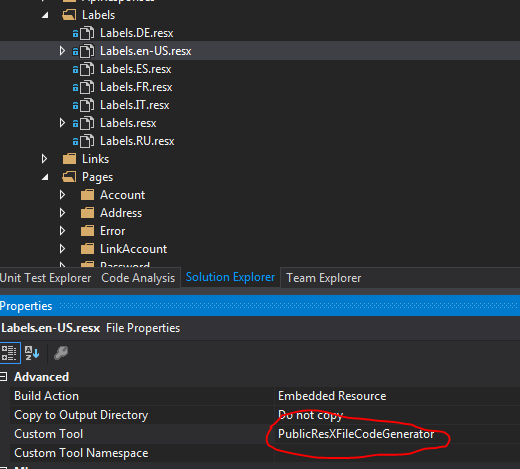
A custom tool ‘PublicResXFileCodeGenerator’ is associated… compiler warning

If you ever have a compiler warning saying

A custom tool ‘PublicResXFileCodeGenerator’ is associated with file ‘blah’, but the output of the custom tool was not found in the project. You may try re-running the custom tool by right-clicking on the file in the Solution Explorer and choosing Run Custom Tool.image001

To remove the compiler warning you can just remove the Custom Tool by clicking on the Resource file, pressing F4 to bring up the Properties and then removing the entry for Custom Tool. Easy.

image003

App idea: Should I Cycle?

I’ve come up with an idea for an iPhone app which I’m going to implement if I have time. I don’t expect to make any money off this app, and I’m only going to build it for an audience of one – me! But if it works well I’ll see if I can be bothered putting it on the app store.

The app is pretty simple – at a set time each day (i.e. in the morning) it should send me an alert (i.e. a push notification) as to whether I should cycle to work or not.

As a fair weather cyclist, the criteria on whether I should cycle to work or not are:

  • Weather – likelihood of rain in the next hour
  • Weather – wind direction
  • Air quality – pollution levels
  • Air quality – pollen count

additional criteria in the future could be:

  • Traffic conditions (doesn’t really bother me)
  • Tube conditions (i.e. if there’s tube or train delays then you should probably cycle)

Anyway, here’s a mockup of what I want the app to do (using creately.com):

Screen Shot 2014-08-25 at 17.43.15

Browse a local Azure Web role from another computer

So, you’re developing an Azure website that runs as a web role, which means you use the Azure Compute Emulator when running it locally. And now you want to test or debug that local website in an older browser, such as IE8.

In this situation I have IE8 running on another computer (or maybe a VM), so I need to open up access to my website which is running locally.

Step 1. Find out your IP address – ipconfig. Mine is 10.200.34.201 (NB. I’ve highlighted the wrong field in the screenshot).
image002

Step 2. Find out which IP address and port the compute emulator is running on, by looking in the System Tray at the IIS Express icon. Note that even though I access the website locally on https://127.0.0.2:447 in my browser, it runs on a different IP and port in the emulator, https://127.255.0.4:448. I don’t know/care why.
image001

Step 3. Download and install Pass Port from http://sourceforge.net/projects/pjs-passport/. Yes it’s old but it does the job of forwarding ports nicely, which is what we need to do.

Step 4. Set up a Pass Port port forwarding rule with your IP address and any port (I’m using 800) to the IP address and port of the emulator. N.B. you may need to run PassPort as an Administrator if it doesn’t seem to be working.

image004Step 5. Open up that port (800) in the Windows Firewall:

image003

That should be it. Now you can connect on the remote computer to your Azure Emulator running locally. Obligatory screenshot of my site running in IE8:

image005

Beginner’s guide to add a toolbar to an iOS iPhone app with a Storyboard

I’ve been playing around with iPhone apps a little bit. I’m certainly no expert though, I’m still a beginner myself.

A basic task is to add a toolbar with buttons to your application using XCode.

Lots of samples online are using old versions of XCode. Allow me to demonstrate how to add a toolbar to an app, using XCode 4.2 with Storyboards.

Create a new Project

In Xcode, File -> New Project. Choose Single View Application. I named my application com.mattfrear.toolbars.

Add a toolbar

If you can’t see it, choose View -> Navigators -> Show Project Navigator.

If you can’t see it, choose View -> Utilities -> Show Object Library.

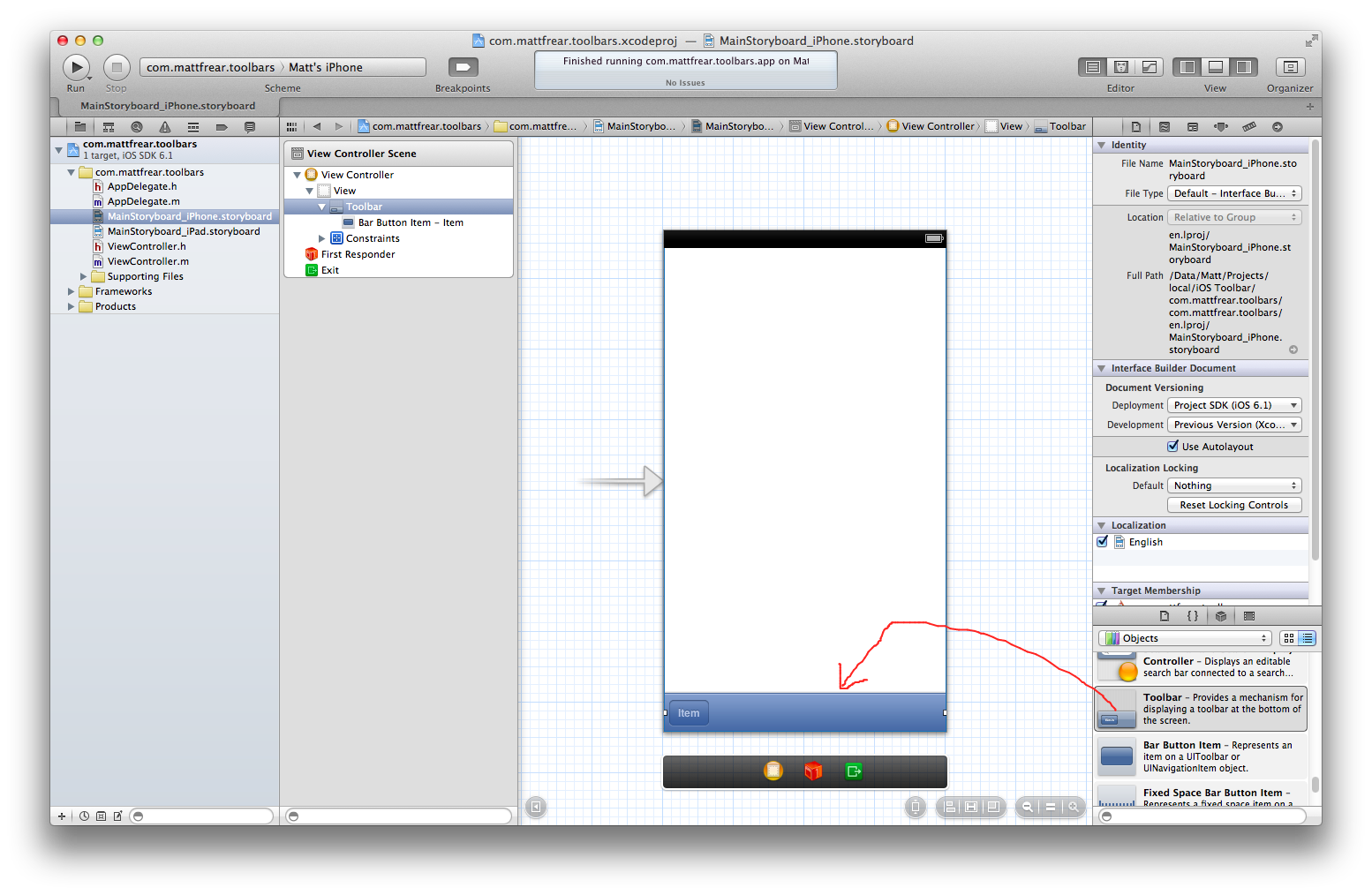
Open the MainStoryboard_iPhone.storyboard. Click on the View.

In the Object Library (which should be in a window at the bottom right of your screen), scroll to the bottom and choose Toolbar. Drag it onto the View. Your screen should look like this:

Screen Shot 2013-08-29 at 16.05.42

Wire up the button

Now we need to add some code which will be fired when the button is clicked.

Open ViewController.m. At the end of the file, before the last @end, paste the following:

-(IBAction) buttonClicked
{
    UIAlertView *alert = [[UIAlertView alloc] initWithTitle:@"Hello world"
                                                    message:@"You clicked the button"
                                                   delegate:nil
                                          cancelButtonTitle:@"OK"
                                          otherButtonTitles:nil];
    [alert show];
}

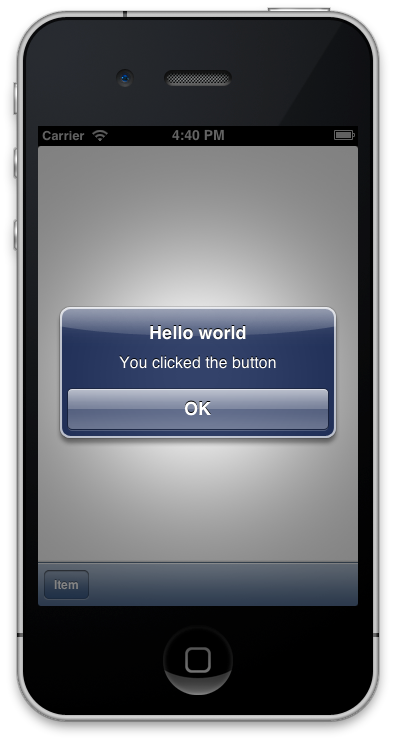
This is the code which will execute when the button is clicked, and it will display a simple Hello World popup.

Our final step is to wire up the button to this method. To make this easier we can use the Assistant Editor.

In Xcode, go View -> Assistant Editors on Right. Then View -> Show Assistant Editor.

If your screen is small, you might want to go View -> Utilities -> Hide Utilities.

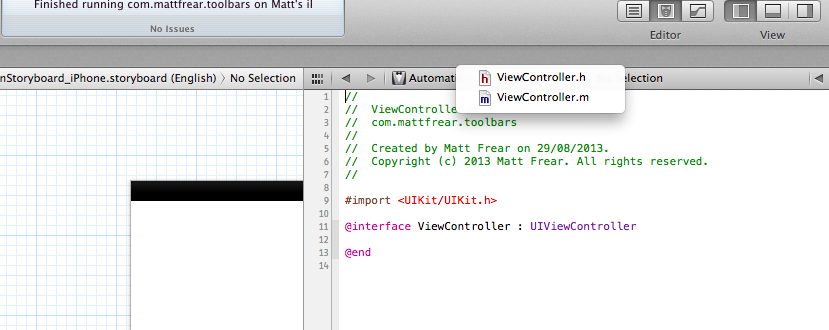
The Assistant Editor should have ViewController.h open. In the Assistant Editor toolbar at the top, it should say Automatic > ViewController.h > No Selection. In that toolbar, click on ViewController.h and choose ViewController.m from the dropdown.

Screen Shot 2013-08-29 at 16.30.55

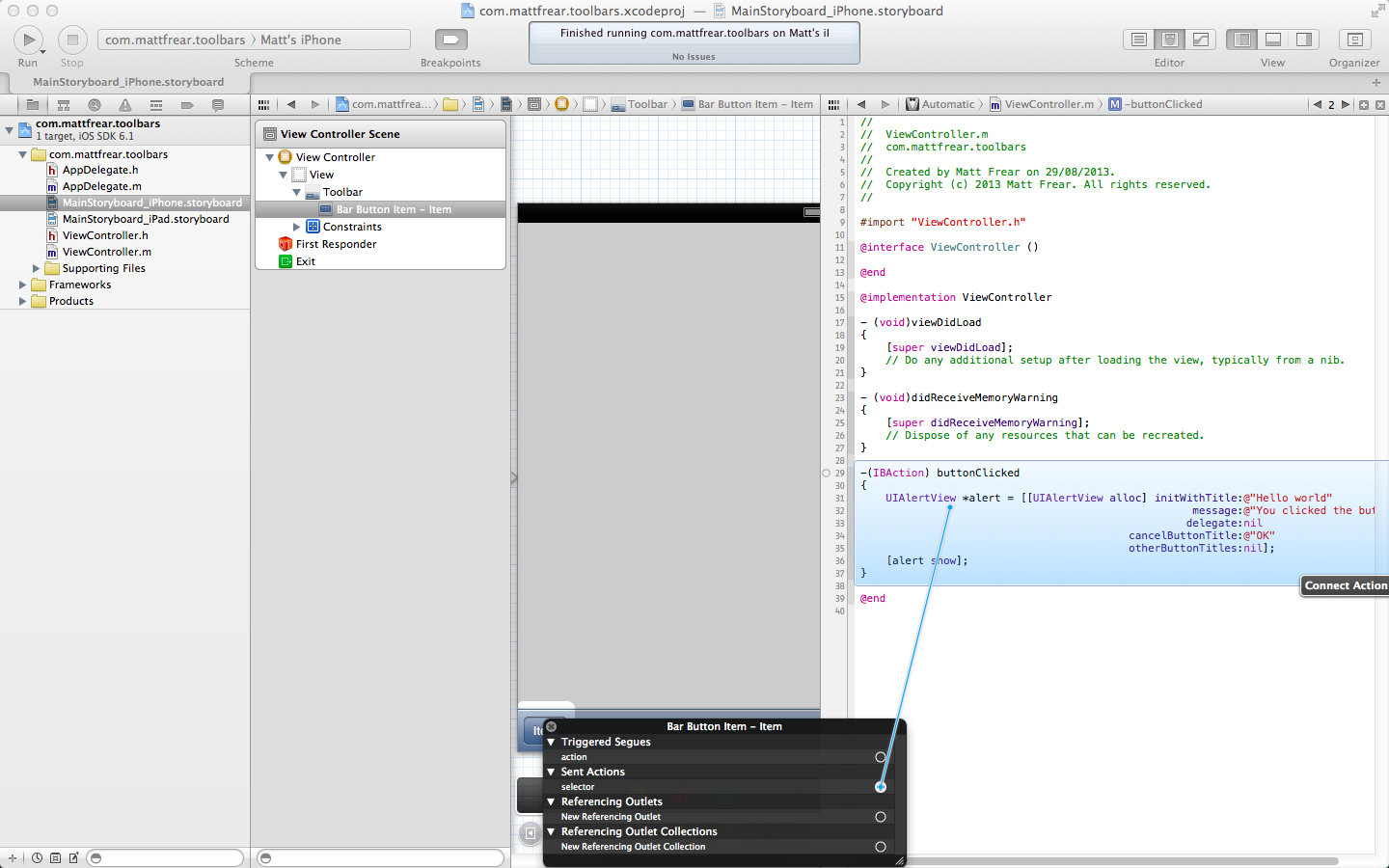
In the main window, click on the toolbar we added to our View, then on our “Item” toolbar button. Now right click it to bring up the “Bar Button Item – Item” menu.
Under Sent Actions, next to selector there is a + button. Click that and then drag it to the buttonClicked method in ViewController.m.

Screen Shot 2013-08-29 at 16.34.40 (2)

Hooray! Now our toolbar button is wired up to the method. Let’s run our app to test it.

In XCode’s toolbar, next to the big Run and Stop button you should see a drop down. Choose iPhone Simulator, then click the Run button.

Screen Shot 2013-08-29 at 16.40.16

Woop!

Upgrading a Haswell Macbook Air (mid-2013) to Windows 8

I recently bought a new Macbook Air for work – a mid-2013 Haswell one. I got all the optional upgrades which means it’s an i7, 8Gb of RAM and 512Gb SSD. The main reason I upgraded from my mid-2011 Macbook Air was that I wanted more RAM – with 4Gb it was struggling to run Azure VMs in Windows. Also the 256Gb SSD was stretched, I was constantly having to fight to free up disk space in both Windows and OSX. Finally, I wanted USB 3.0, so that I could use an external HDD at full speed should I need more disk space. And the new PCI-based SSD sounded tasty.

macbook air

My Windows 8 Pro license is an upgrade only license, so in order to get Windows 8 on it I first had to install Windows 7 using Boot Camp. Which went fine.

Once Windows 7 was installed I ran the Windows 8 upgrade installation. It would go through the whole process but then after a few reboots and at the end of the setup process it would hang at the “Personalise” screen, where you choose a colour scheme and a name for your computer. It wasn’t actually hung, it was just that the keyboard and mouse didn’t work so I couldn’t click next. Neither the built in keyboard nor a USB keyboard would work.

So then I tried downloading and making a Windows 8 ISO and installing from that via Boot Camp (instead of installing Win 7 first), which worked fine, but then when I Activated Windows it wouldn’t let me because I have an upgrade only Windows 8 license. Poo.

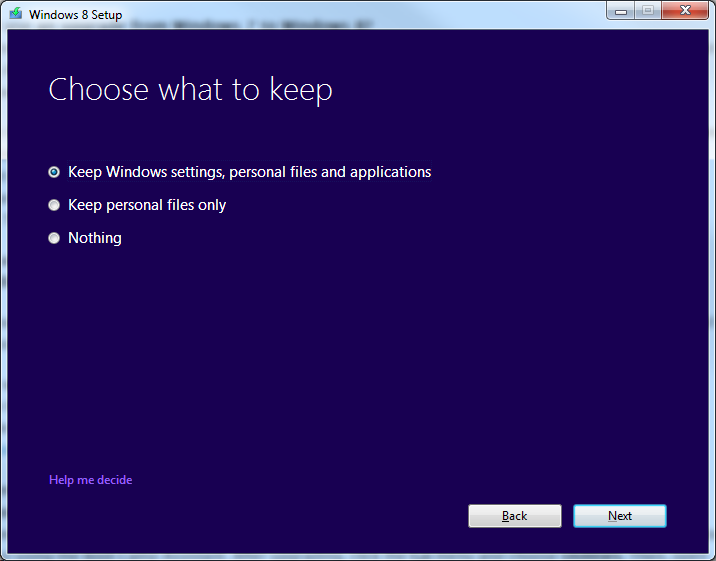
So my third attempt, and this time I installed Windows 7 first, and the Boot Camp drivers in Windows 7. Then when I ran the Windows 8 upgrade install I elected to choose to Keep Windows settings, personal files and applications – the idea being that it would keep the Boot Camp drivers installed.

choose

Well, third time lucky anyway cos that worked.

Update: it looks like this is a known issue – see this solution.

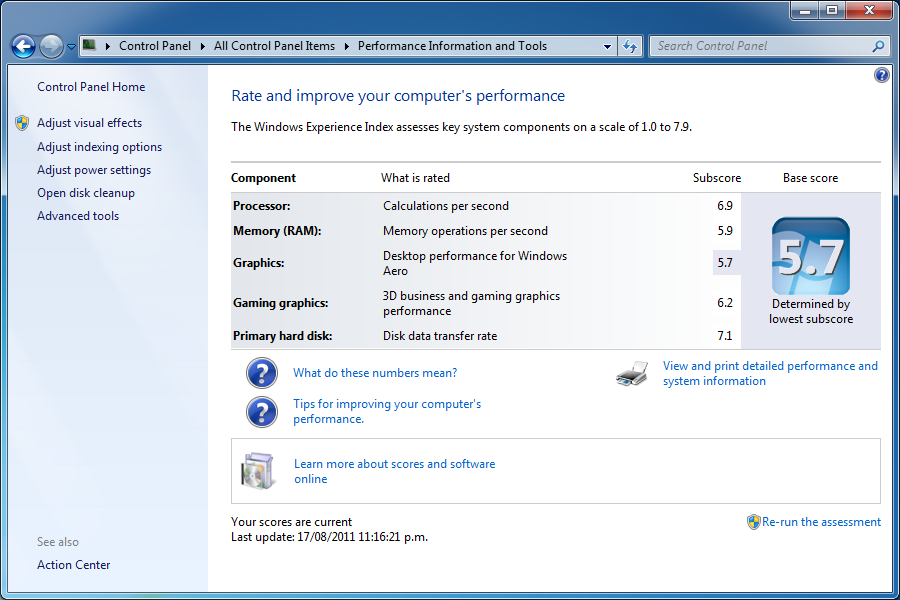
So, how does the new Macbook perform compared to my older mid-2011 Macbook Air?

Here’s 2011’s Windows Experience Index:

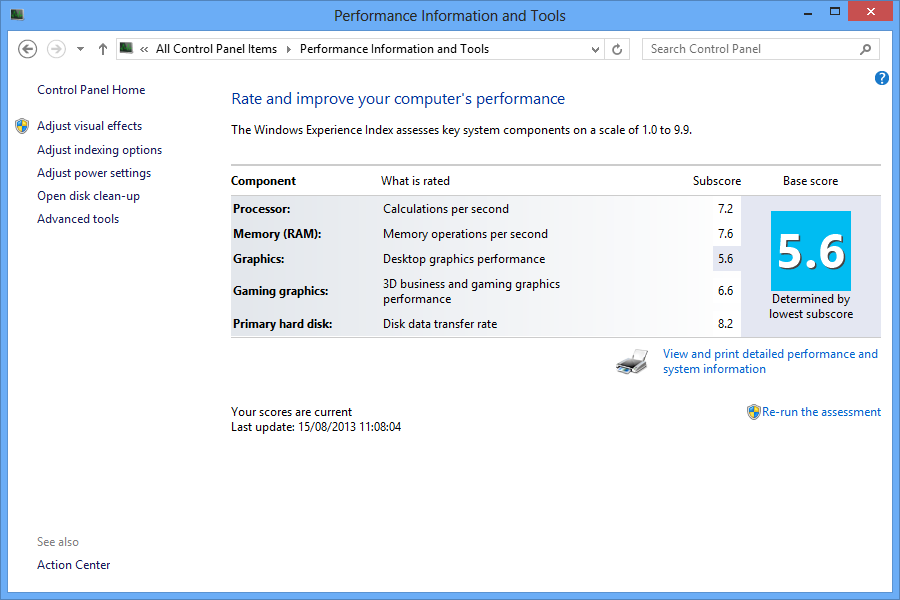
wei

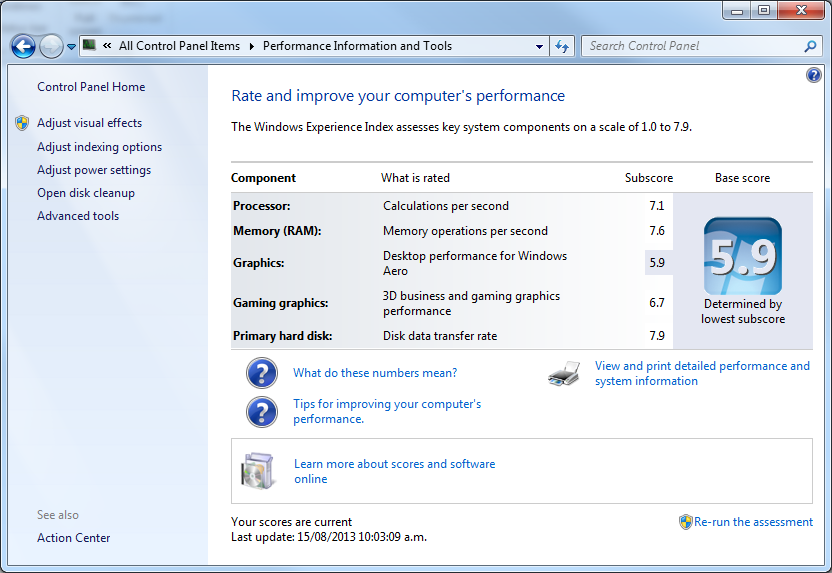
And here’s 2013’s. Not really much faster!
win 7 experience

Finally, here’s 2013’s again under Windows 8:win 8 experience

The only thing worth noting is the decent hard disk rating.

Another advantage of the Haswell chipset is longer battery life – up to 12 hours according to Apple, and the reviews seem to confirm that. BUT I bought the i7 version which is a bit more of a power hog, as confirmed by AnandTech – so I only get about 6 hours of battery life, a slight improvement on the 4 hours I was getting on the 2011 i7 version.

So overall, the 2013 Air is not much of an upgrade on the 2011 version really. Which is a bit of a disappointment.

Macbook Air’s SSD died – here’s my new backup strategy

My mid-2011 Macbook Air‘s SSD died last week. I’d spent a lot of time setting this up just how I wanted: dual boot OSX and Win 7 (then Win 8) – 50Gb for each OS, and a 150 Gb shared exFat “Data” partition which is writable by both OS. The Data partition contained all my music, photos, and source code.

promo_macbookair

My backup strategy was:

  1. OSX backed itself up automatically to my Time Capsule using Time Machine.
  2. Windows I never backed up because I don’t mind re-installing a new Win machine in the event of failure since it’s a good chance to start from scratch and get rid of old crap – old versions of Visual Studio etc.
  3. The Data partition – the most important one – I backed up manually both to my Time Capsule’s shared network disk and an external USB drive, using Syncback Free. I’d usually do this once or twice a month.

I’d had an inkling that the SSD was about to die for about a week before – every morning on boot the Mac would display a flashing question mark icon. Usually it would boot OK on the second or third attempt. Until it didn’t (on my birthday, no less)…

Cue the usual ranting and gnashing of teeth. Every day I’m not working is a day I’m not getting paid (contractor, ya see). All of the Mac service centres in London promised a 3-5 working day turn around, because they would have to order in a replacement SSD. Which means I’d have to make an appointment with the dreaded Genius Bar since they probably would have the part in stock.

The staff at the Genius Bar are always great, but I HATE the process you have to go through to see them – booking an appointment online. To cut a long story short, I was able to get a walk-in appointment later that day, and because I had AppleCare (which I bought specifically because SSDs are unreliable), the £600 replacement part cost me £0. But it still cost me a day’s productivity (and pay!).

In terms of lost data, not a lot. I lost a Linux VM which I could rebuild in about a day. Source code is on git / svn servers so none. Personal data – some photos of a trip to Portugal but I was able to get lower res copies of most of them from Facebook.

Since then I’ve changed my backup strategy slightly, so as to avoid downtime, by embracing the Mac way of doing things:

  1. No more dual boot – I’m gonna run Windows 8 in VirtualBox when the need arises
  2. Everything is on the one Macintosh HD partition. However, old habits die hard – I still have the content of my old “Data” partition located at /Data on that hard drive, organised how I like it to be and not how OSX wants me to have it organised.
  3. Time Machine + Time Capsule now backs up everything automatically when I get home.
  4. Super Duper backs up and creates a bootable version of my Macintosh HD on an external USB drive. This means that if my SSD dies again, I can boot straight off the USB hard drive and carry on working. At the moment I’m doing this every night, which takes about 20 mins (using the Smart Copy – I purchased a license). But if I think about it, once a week or so should be adequate since my personal files should be getting backed up by Time Machine, and I usually commit / shelve source code every night.

I still feel a bit uneasy about running Windows in a VM, but lately I’ve only been using OSX at work. I’ll see how it goes when I start coding in .NET again in a few weeks.

Book review – Instant Meteor Javascript Framework Starter

Last year I started playing around with Meteor, a new javascript framework. I didn’t get much further than playing with and tweaking sample applications.

When it came time to start creating my own app in Meteor though, I was a bit lost. I didn’t really know where to start.

I was given a copy of Instant Meteor Javascript Framework Starter which I read over the weekend. The book was a good read – I especially enjoyed the opening chapters which covered what Meteor is and why it’s cool, better than the official Meteor docs cover.

It covered all the Meteor basics well, and I would recommend the book to anyone who wants to get started building their own app with Meteor. Reading it has gotten me excited about Meteor again!